Right-click a booking
Take a booking's next step from the calendar, without opening it first.
Time: Seconds · Updated Oct 31, 2026
Before you start
- A booking on your Schedule.
- A computer. Right-click doesn't work on a phone or a touchscreen.
Right-click the booking
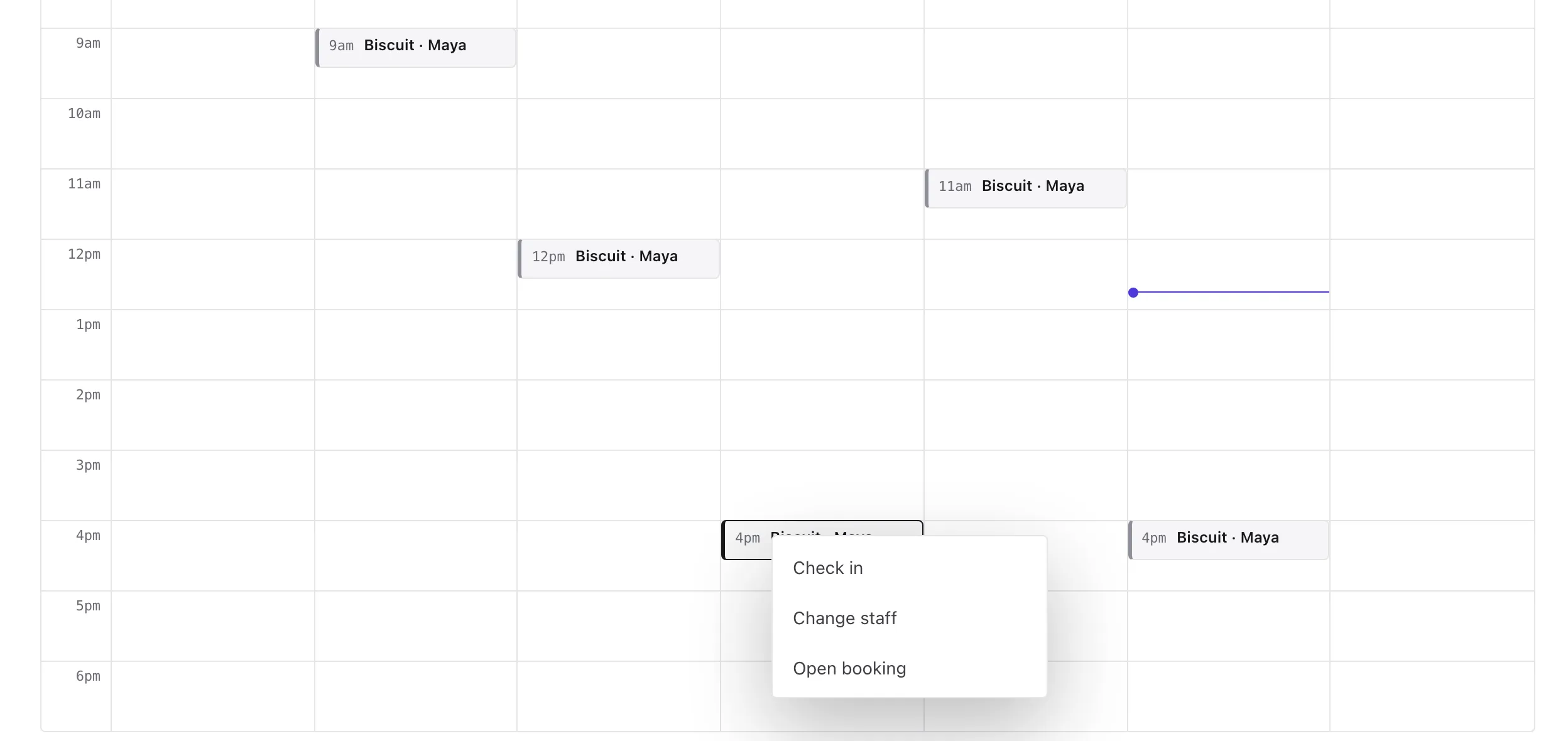
Go to Schedule and right-click a booking on the week view. For a boarding stay, you can right-click its card in the Stays row too. A menu opens with what you can do next.
Take the next step
The first item is the booking’s next step, such as Check in, Check out, Mark complete, or starting or ending a walk. Click it and the booking opens and carries on from there, the same as using the button inside the booking.
A boarding stay asks you to confirm the drop-off or pickup time first. Check in only shows once the booking’s day has come. If the booking has nothing left to do, you’ll just see Open booking.
Change who has it
If you have a team, the menu also shows Assign staff or Change staff on a visit that hasn’t finished. Pick someone from the list, which shows who’s free at that time.
You can also change the staff when you check in. On a team, the check-in step shows who has the booking, and you can pick someone else there.
Done
The booking updates on your Schedule. To see everything about it, choose Open booking.
What’s next
Need a different time? Move the booking by dragging it.
Still stuck?
Email us and a person will help, or book a call and we'll walk through it with you.
admin@reeve.pet