Set up your business
Fill in your company profile and working hours, so your booking page, invoices and routes all show the right details.
Time: About 5 minutes · Updated Oct 13, 2026
Before you start
- A Reeve account. If you just signed up, Reeve walks you through the basics first; this is where you change them later.
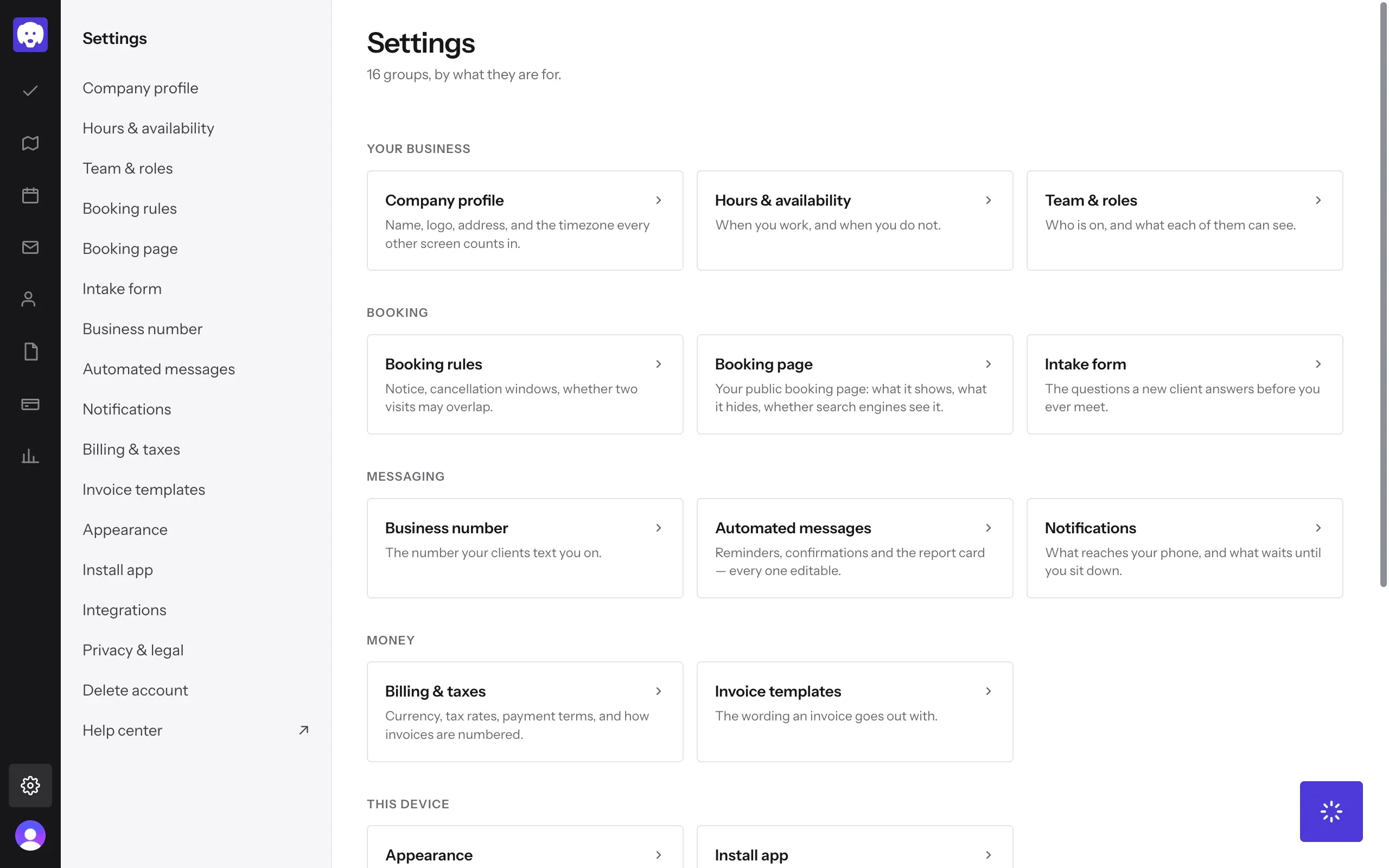
Open Settings
Click the gear at the bottom of the left-hand bar. Settings lists every group by what it is for. Under Your business, click Company profile.
Add your logo and business details
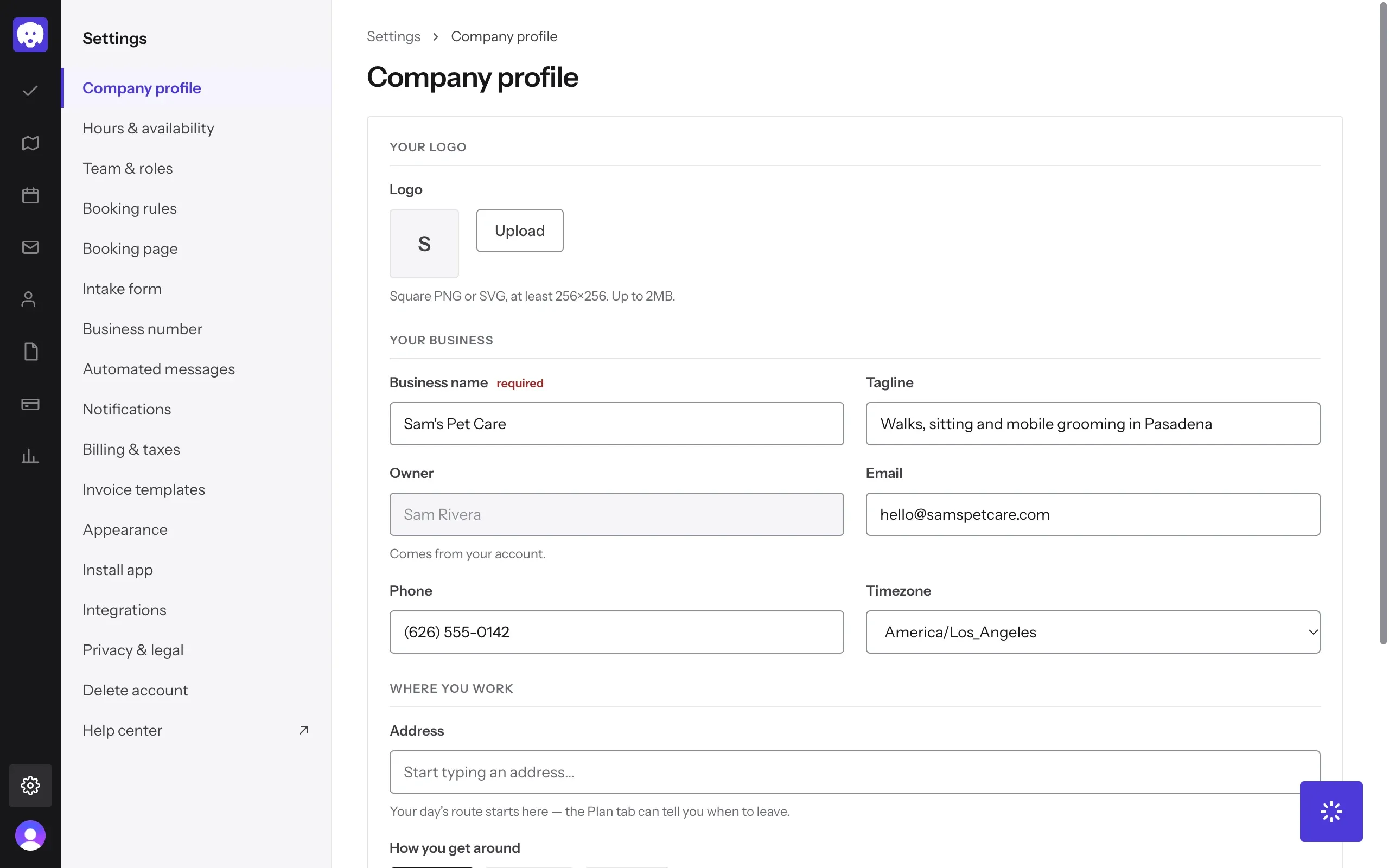
Under Your logo, click Upload and pick a square PNG or SVG, at least 256 × 256. Then fill in Your business:
- Business name is what clients see on your booking page and invoices.
- Tagline is one line under your name, like “Walks, sitting and mobile grooming in Pasadena”.
- Email and Phone are where clients can reach you.
- Timezone decides how every time in Reeve is counted. Set it to where you work.
Say where you work, then save
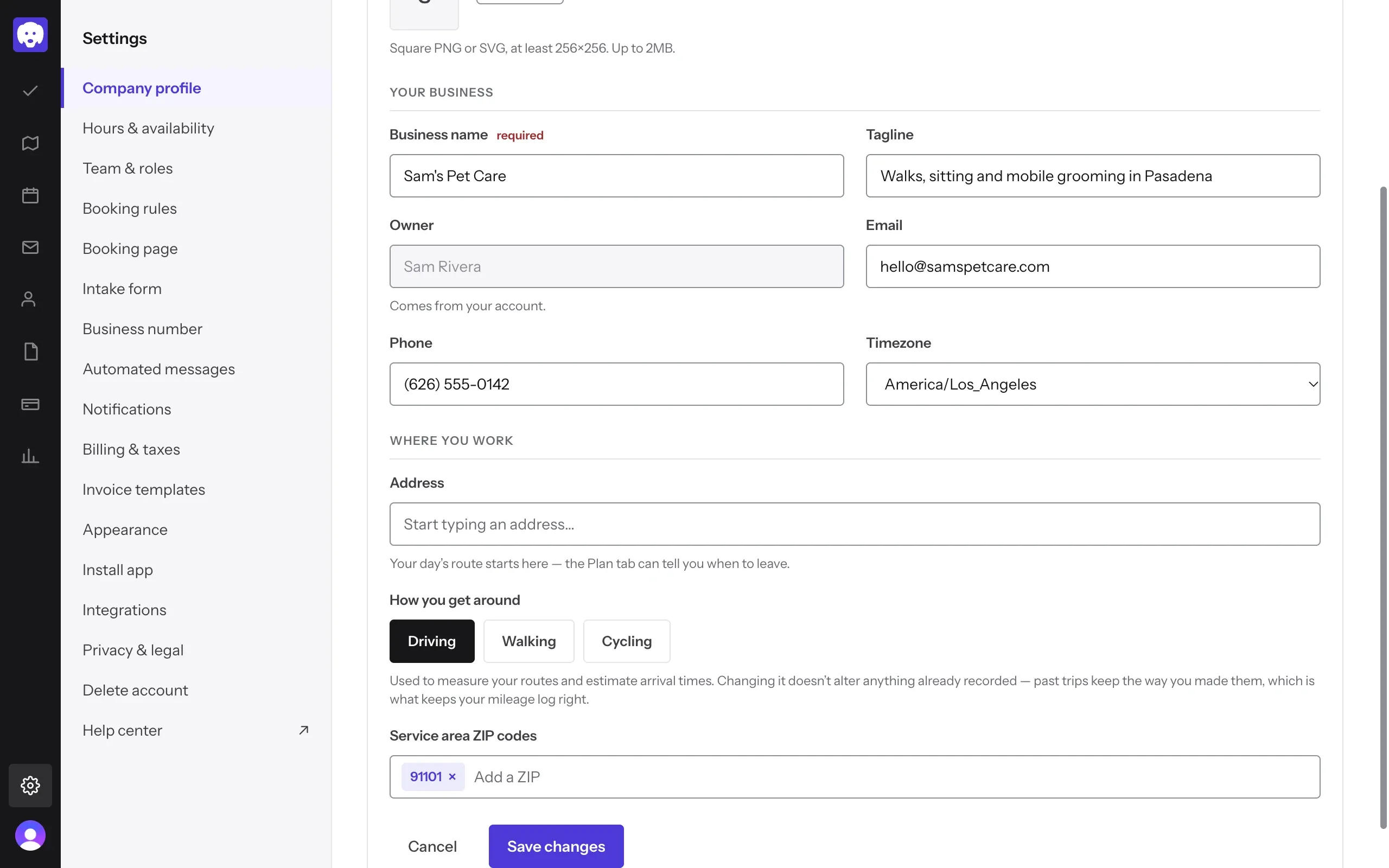
Under Where you work, start typing your Address and pick it from the list. Your day’s route starts here. Choose How you get around (Driving, Walking or Cycling), and add your Service area ZIP codes: type one and press Enter. Reeve uses them to tell you whether a new enquiry is in your area.
Click Save changes.
Set your hours
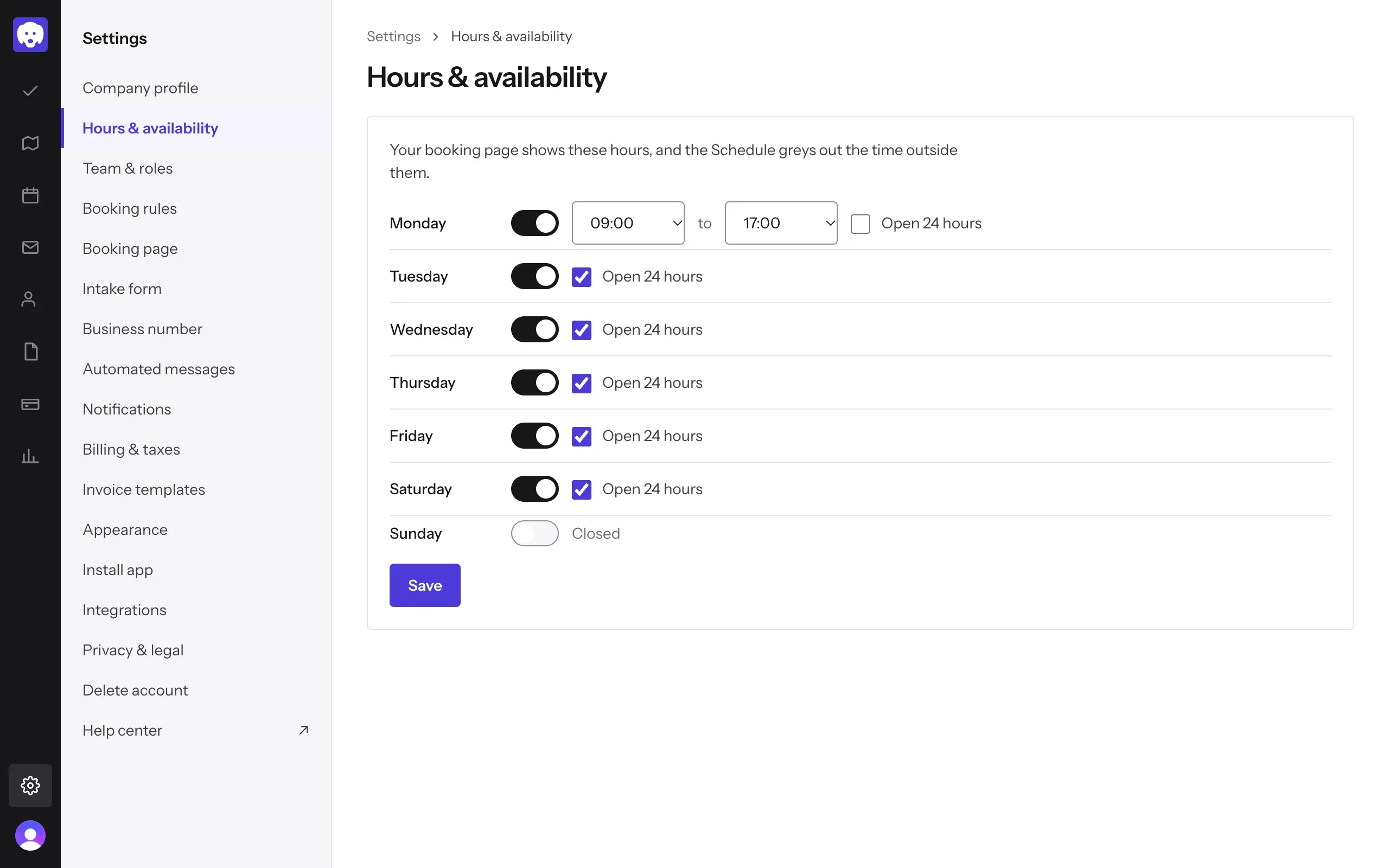
In the Settings list, click Hours & availability. Each day has a switch: on means you work that day, off shows Closed. Untick Open 24 hours to choose a start and end time. A Save button appears once you change something; click it.
Your booking page shows these hours, and the Schedule greys out the time outside them.
What’s next
Add your services, so clients can book you.
Still stuck?
Email us and a person will help, or book a 15-minute call and we'll walk through it with you.
admin@reeve.pet