Connect Google Calendar
Your bookings appear in their own calendar in your Google account, and follow along when you move or change them in Reeve.
Time: About a minute · Updated Oct 13, 2026
Before you start
- A Google account you use for your calendar.
Open Integrations
Click Settings in the left-hand bar, then Integrations. The Google Calendar card explains what it does: your bookings show up in a calendar called PetPro Bookings in Google, and stay in step as you change them. Until you connect, it says Not connected.
Click Connect.
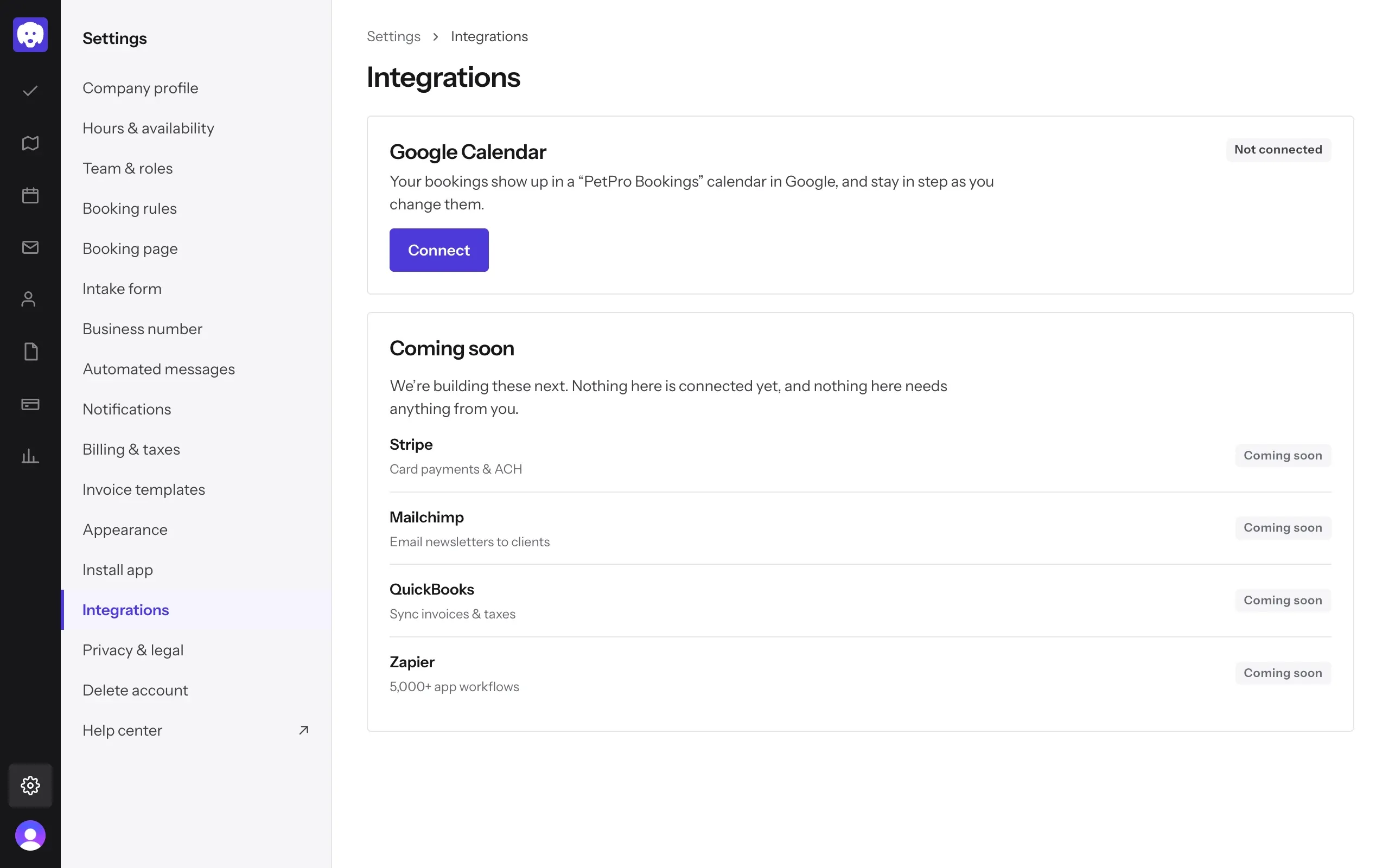
Stripe, Mailchimp, QuickBooks and Zapier are listed under Coming soon. They aren’t connected yet and need nothing from you.
Sign in to Google and check it’s connected
Reeve takes you to Google. Choose the account you want your bookings in and allow access. Google then sends you back to Reeve, which shows Google Calendar connected. (If Google or the sign-in says no, Reeve shows Google connection failed instead. Click Connect to try again.)
Back on Integrations, the card now says Connected and shows the Google account it’s linked to. Open Google Calendar and look for the PetPro Bookings calendar: your bookings are there, and they update as you change them in Reeve.
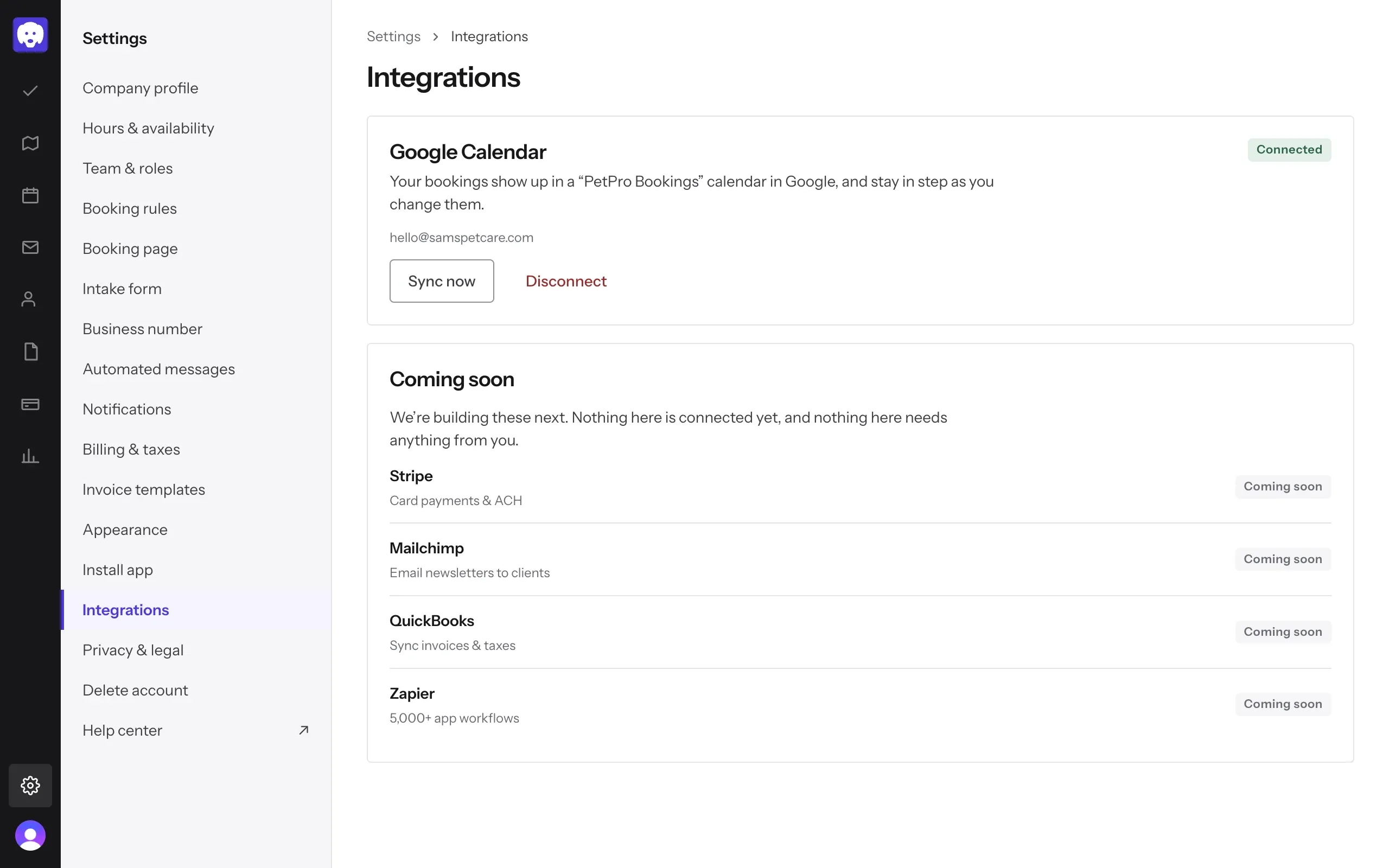
Don’t see a booking in Google? Click Sync now. Reeve sends your bookings again and tells you how many it re-synced.
Turning it off
Click Disconnect and confirm. Reeve stops syncing your bookings and removes the PetPro Bookings calendar from your Google account. Your bookings in Reeve stay exactly as they are.
What’s next
Take a booking and watch it appear in Google Calendar.
Still stuck?
Email us and a person will help, or book a 15-minute call and we'll walk through it with you.
admin@reeve.pet