Set up automated messages
Turn each automatic message on or off, and edit its wording so it sounds like you.
Time: About 2 minutes · Updated Oct 13, 2026
Before you start
- A business set up in Reeve.
See what Reeve sends for you
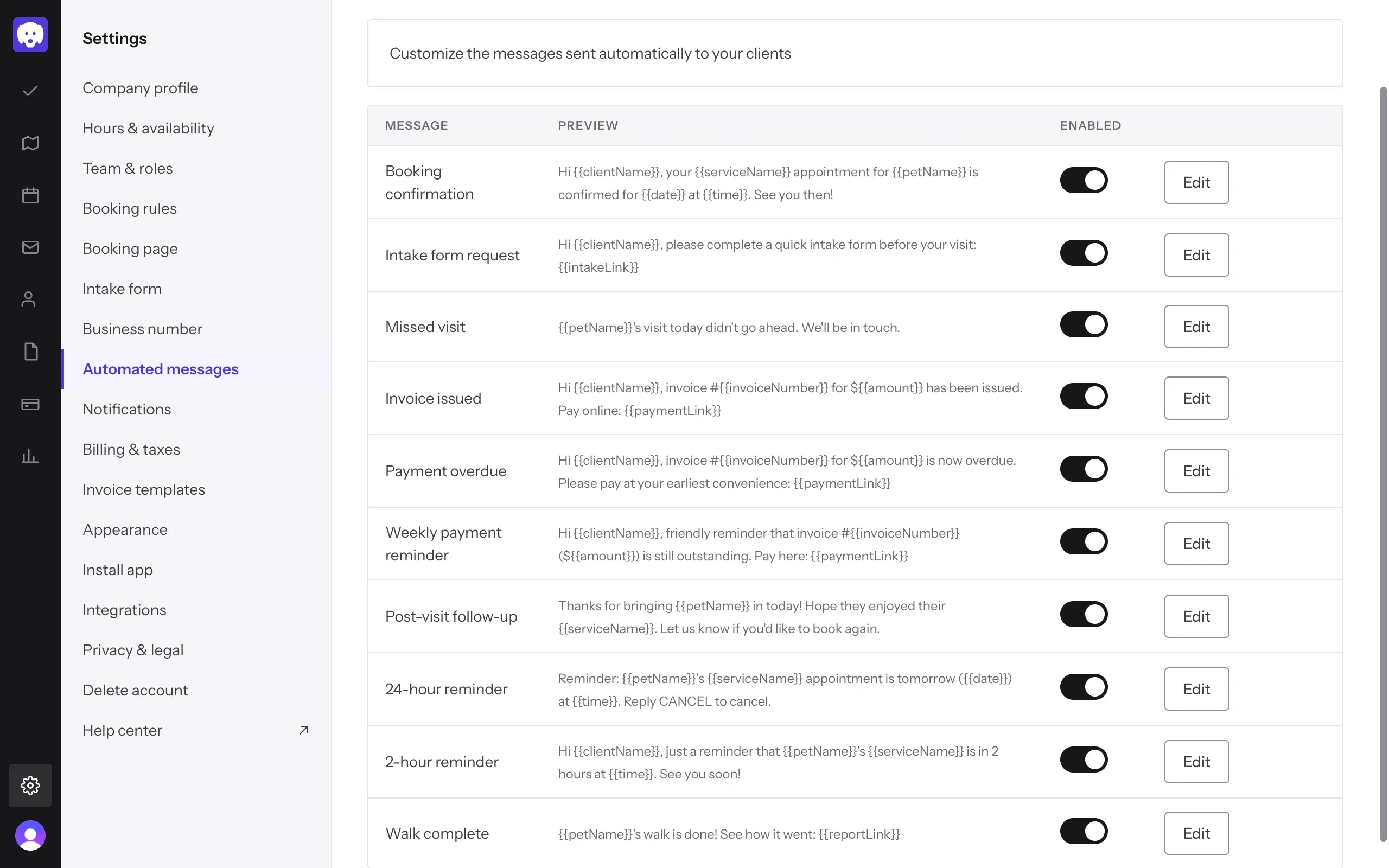
Click Settings in the left-hand bar, then Automated messages. Each row is one message Reeve sends to the client by itself, with a Preview of its wording:
- Booking confirmation, when you book a visit.
- Intake form request, with the link to your intake form.
- 24-hour reminder and 2-hour reminder, before a visit.
- Walk complete, with a link to the visit’s report card.
- Post-visit follow-up, after the visit.
- Missed visit, when a visit didn’t go ahead.
- Invoice issued, Payment overdue and Weekly payment reminder, with a link to pay.
They all start switched on. Don’t want one to go out? Click its switch under Enabled to turn it off. Click it again to turn it back on.
Turning off a reminder doesn’t change your bookings. Reeve just stops sending that one text.
Change the wording
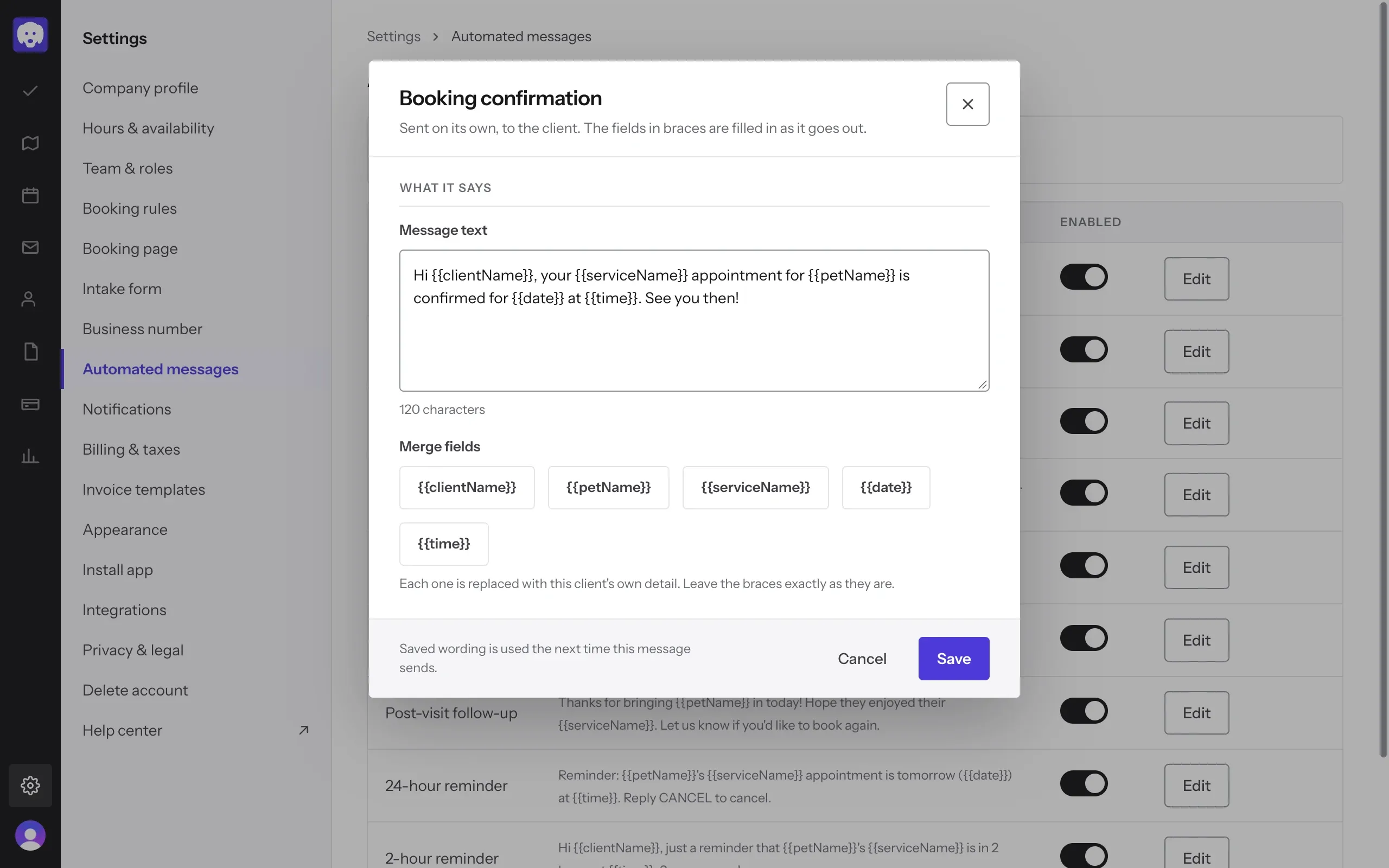
Click Edit next to a message. Change the Message text to say it the way you would. The count below the box shows how many characters it is.
Click Save. Reeve uses the new wording the next time that message sends. Click Cancel to leave it as it was.
Use merge fields
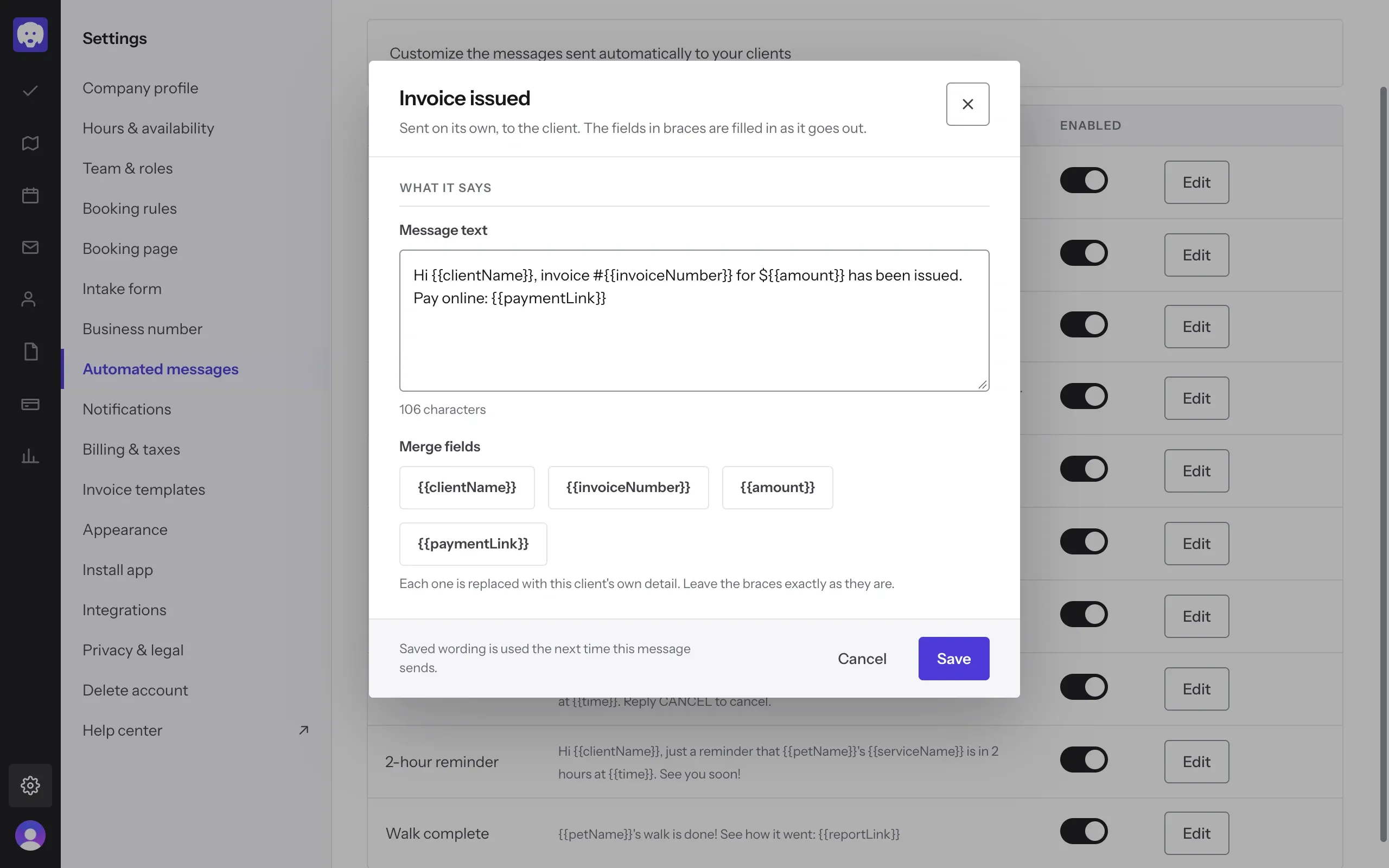
Words in double braces, like {{clientName}} or {{petName}}, are merge fields. Reeve swaps each one for that client’s own detail as the message goes out. Click a field under Merge fields to add it where your cursor is.
Each message has its own fields. A visit message has the client, pet, service, date and time; an invoice message has the invoice number, the amount and the payment link. Leave the braces exactly as they are.
What’s next
Take a booking and Reeve sends the confirmation and reminders for you.
Still stuck?
Email us and a person will help, or book a 15-minute call and we'll walk through it with you.
admin@reeve.pet