Add-ons, packages and discounts
Create an add-on and attach it to a service, set up a pack of visits, and write a discount code you can apply to an invoice.
Time: About 5 minutes · Updated Oct 13, 2026
Before you start
- At least one service.
Create an add-on
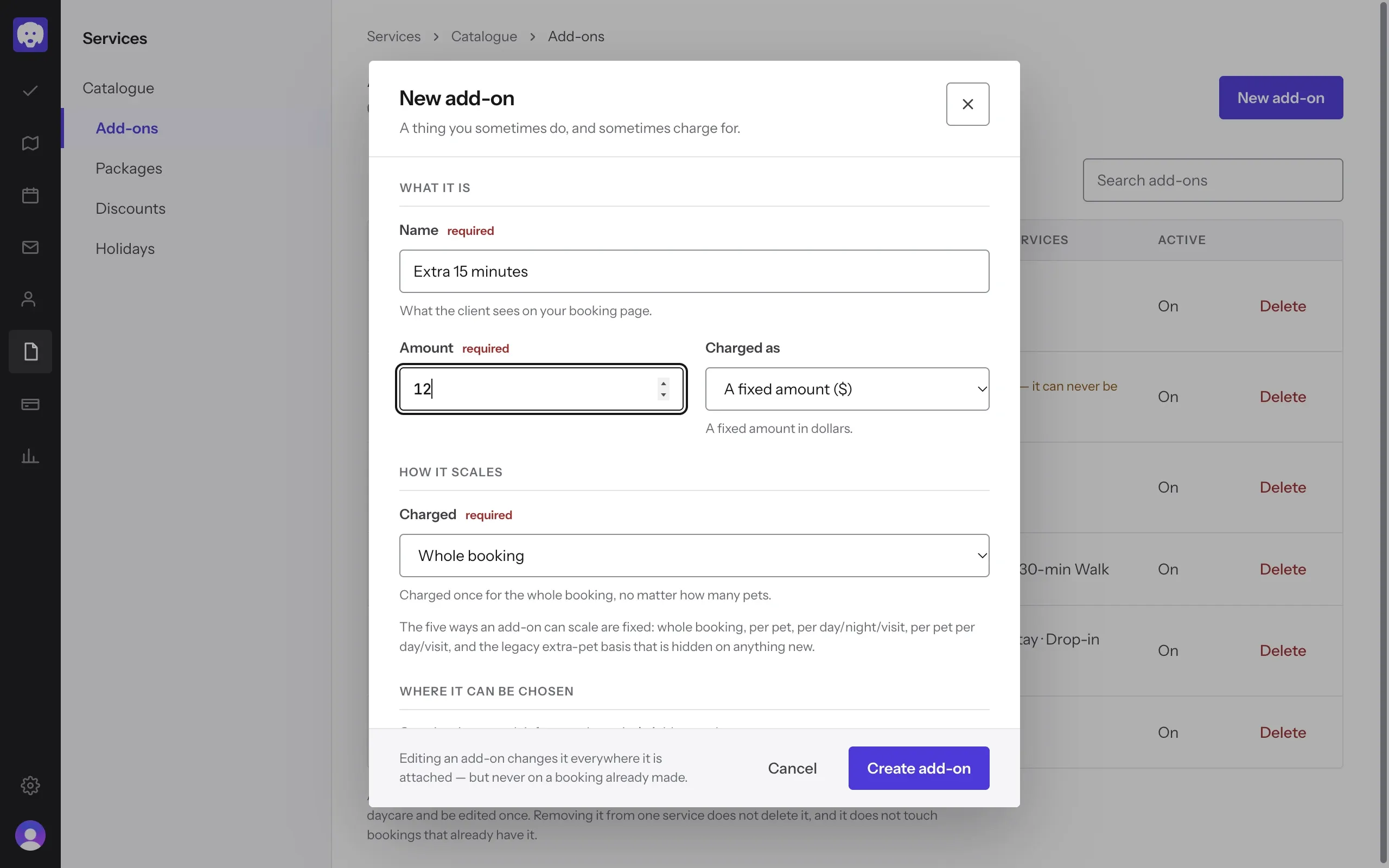
An add-on is an extra you sometimes do and charge for, like a longer walk, a nail trim or giving medication. Go to Services → Add-ons and click New add-on.
Give it a Name and an Amount. Charged as is a fixed amount in dollars or a percentage of the service. Under Charged, choose how it scales: Whole booking, Per pet, Per day/night/visit or Per pet, per day/visit. Click Create add-on.
Attach it to a service
An add-on can only be chosen on the services you attach it to. Go to Services → Catalogue, open the service and click its Add-ons tab. Tick the add-on and click Save service.
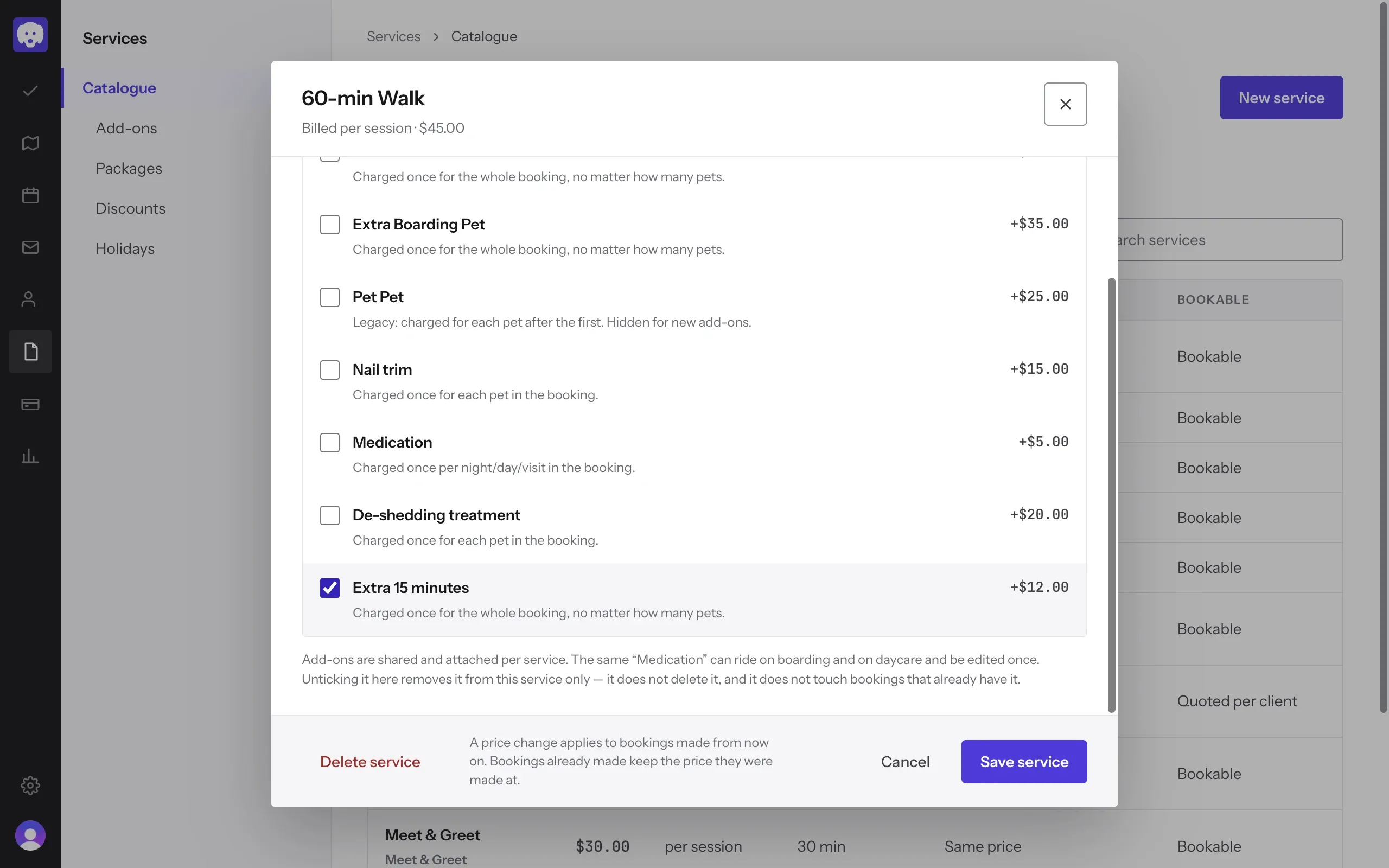
One add-on can sit on several services. Edit it once in Add-ons and it changes everywhere, but never on a booking already made.
Add it to a booking
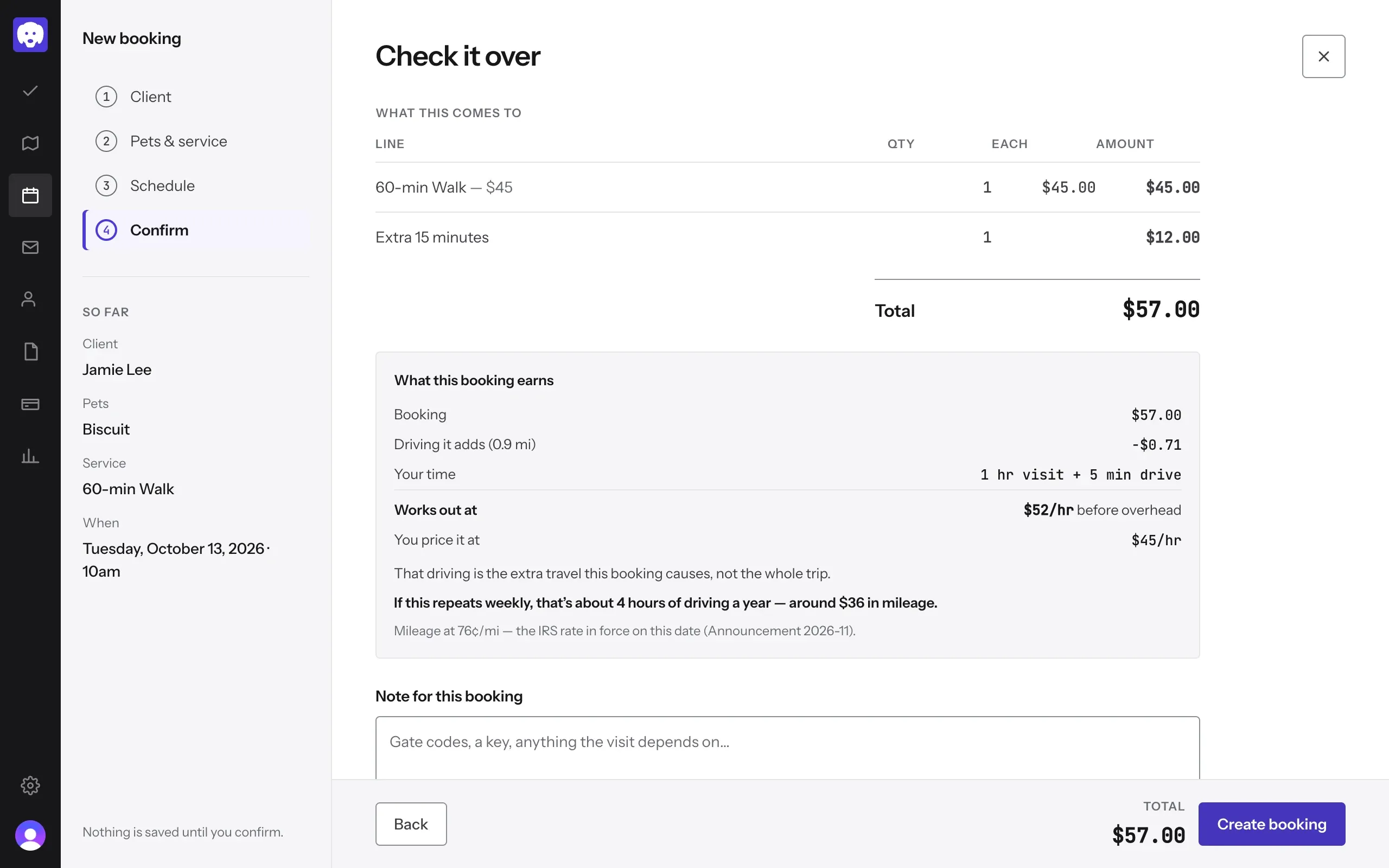
When you take a booking for that service, an Add-ons section appears under the services. Tick the add-on. On Check it over it shows as its own line, and the total includes it.
Set up a package
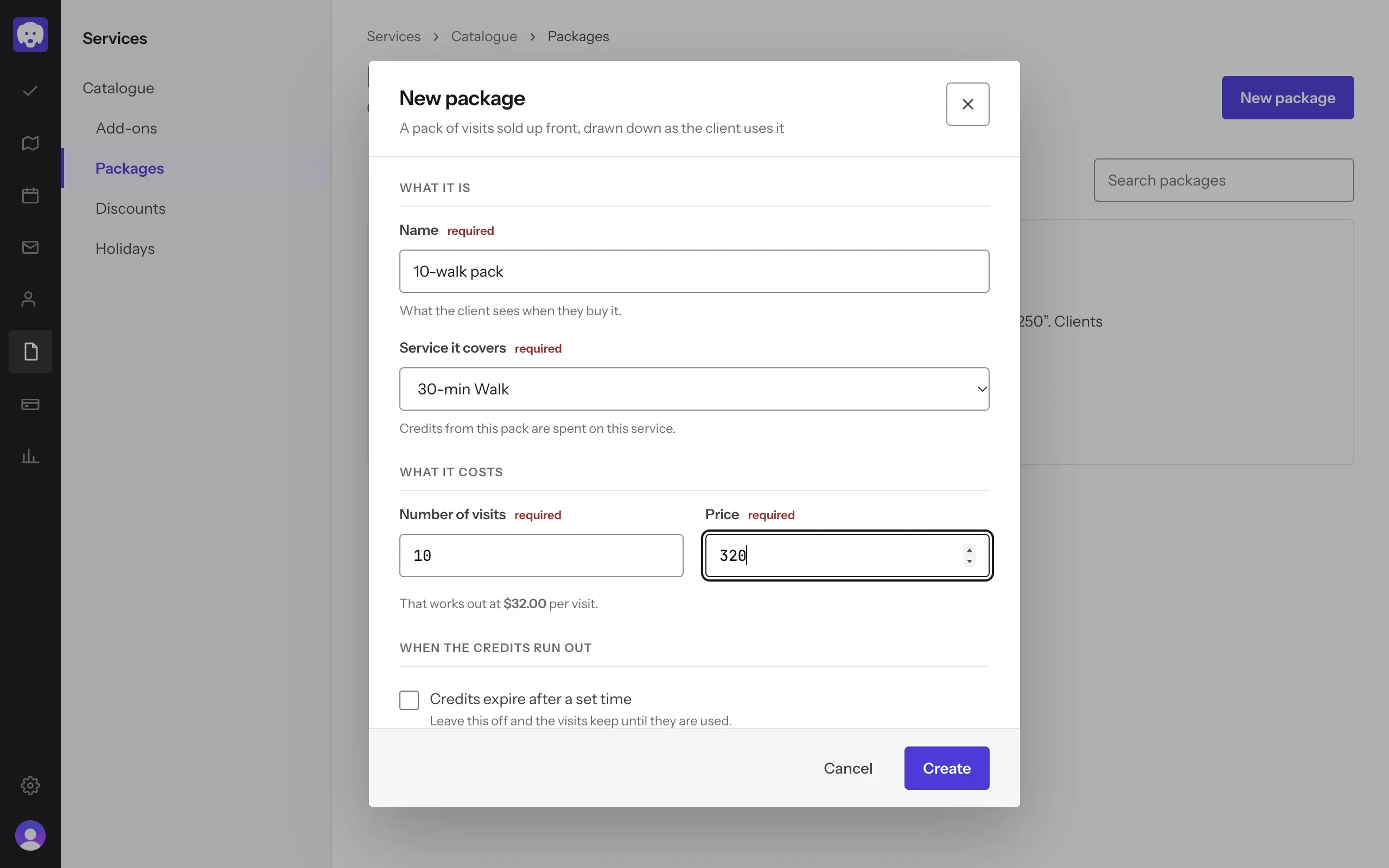
A package is a pack of visits a client pays for up front, like 10 walks. Go to Services → Packages and click New package.
Give it a Name, choose the Service it covers, then set the Number of visits and the Price. Reeve shows what that works out at per visit. Tick Credits expire after a set time if you want unused visits to run out; leave it off and they keep until they’re used. Click Create.
Switching a package off stops new sales. Clients who already bought it keep their visits on the terms they bought them under.
Write a discount code
Go to Services → Discounts and click New code. Enter the Code, choose Percentage (%) or Fixed amount ($), and set the Value. You can add a Min. invoice ($), a Max discount ($), which services it Applies to, and the dates it’s valid. Tick Limit to one use per client for a welcome offer. Click Add discount.
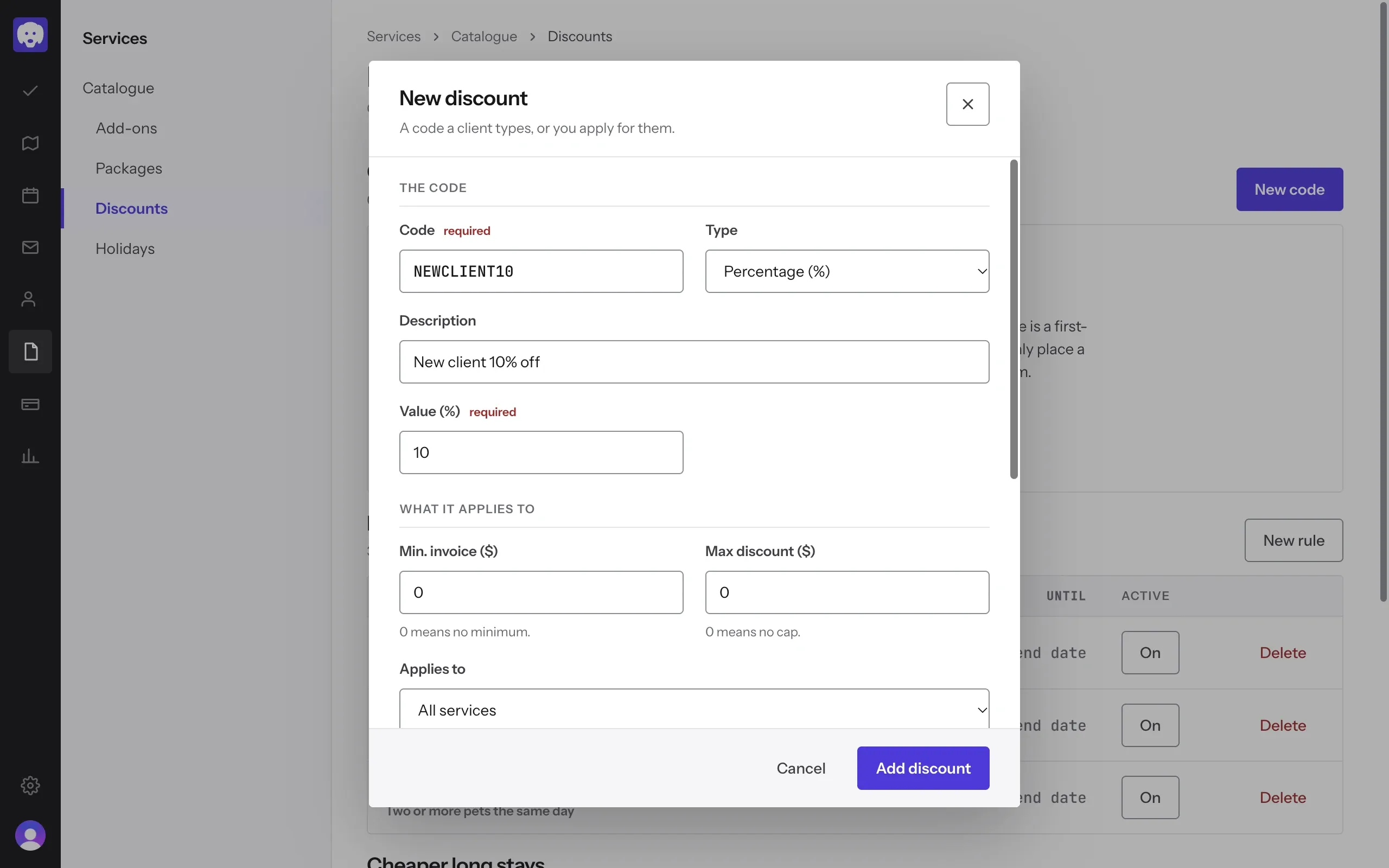
The same page has Rules that apply themselves, like money off a new client’s first booking, which need no code. Cheaper long stays sets a lower nightly rate once a stay reaches a length you choose.
Apply a code to an invoice
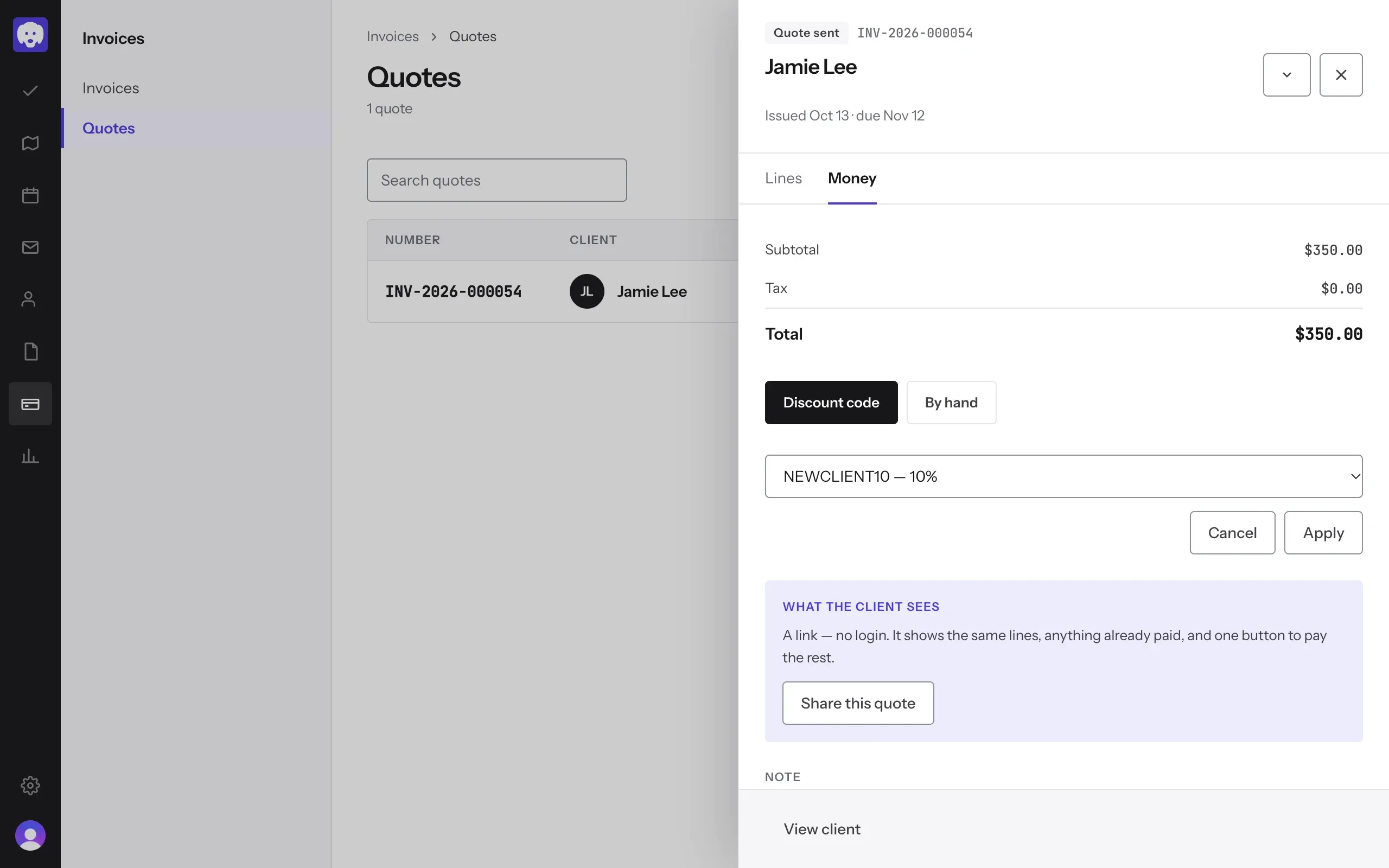
A discount comes off the invoice, never the service price. Open the invoice or quote, go to the Money tab and click Add a discount. Pick the code under Discount code, or choose By hand to type an amount, then click Apply. The invoice shows the discount on its own line.
What’s next
For a job you price case by case, send a quote.
Still stuck?
Email us and a person will help, or book a 15-minute call and we'll walk through it with you.
admin@reeve.pet