Plan your route and track mileage
Know when to leave, drive your stops in the order that suits you, and download your mileage for your accountant.
Time: A couple of minutes · Updated Oct 13, 2026
Before you start
- Your business address set in **Settings** → **Company profile**, under **Where you work**. Pick it from the list so Reeve can place it on a map.
- Some bookings coming up, for clients with an address.
Open Plan
Click Plan in the left-hand bar. Plan lists today and every day with bookings over the next two weeks. The line under the title sums up today: how many stops, the miles, the driving time and how many are done.
Each day shows its stops in drive order, the drive between each one, and Leave by: the time to set off from your base to reach the first stop on time.
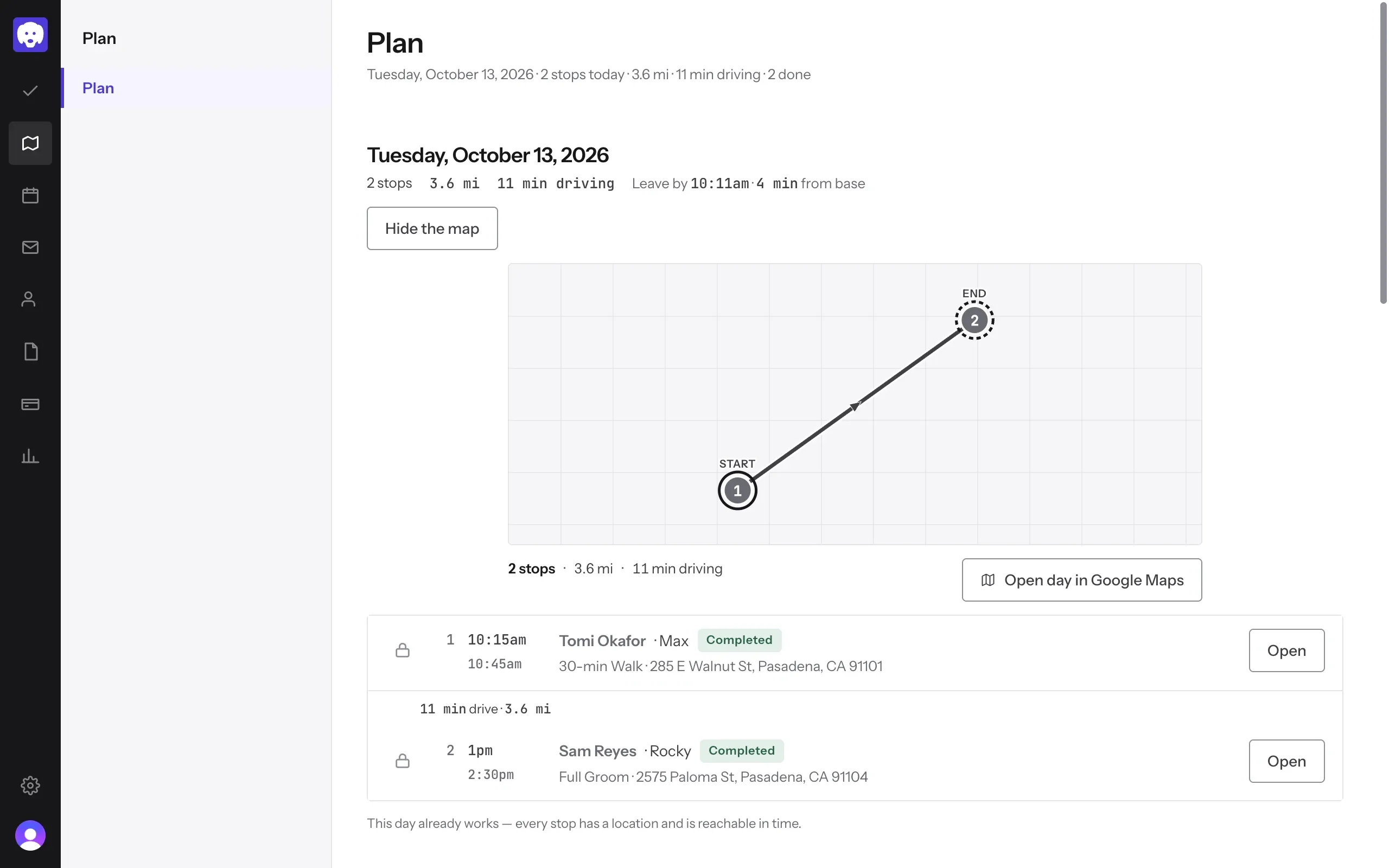
If a client has no address, Reeve lists them at the top under clients need an address. Type their address there, or choose No fixed address for a client you never drive to.
Look at a day’s route
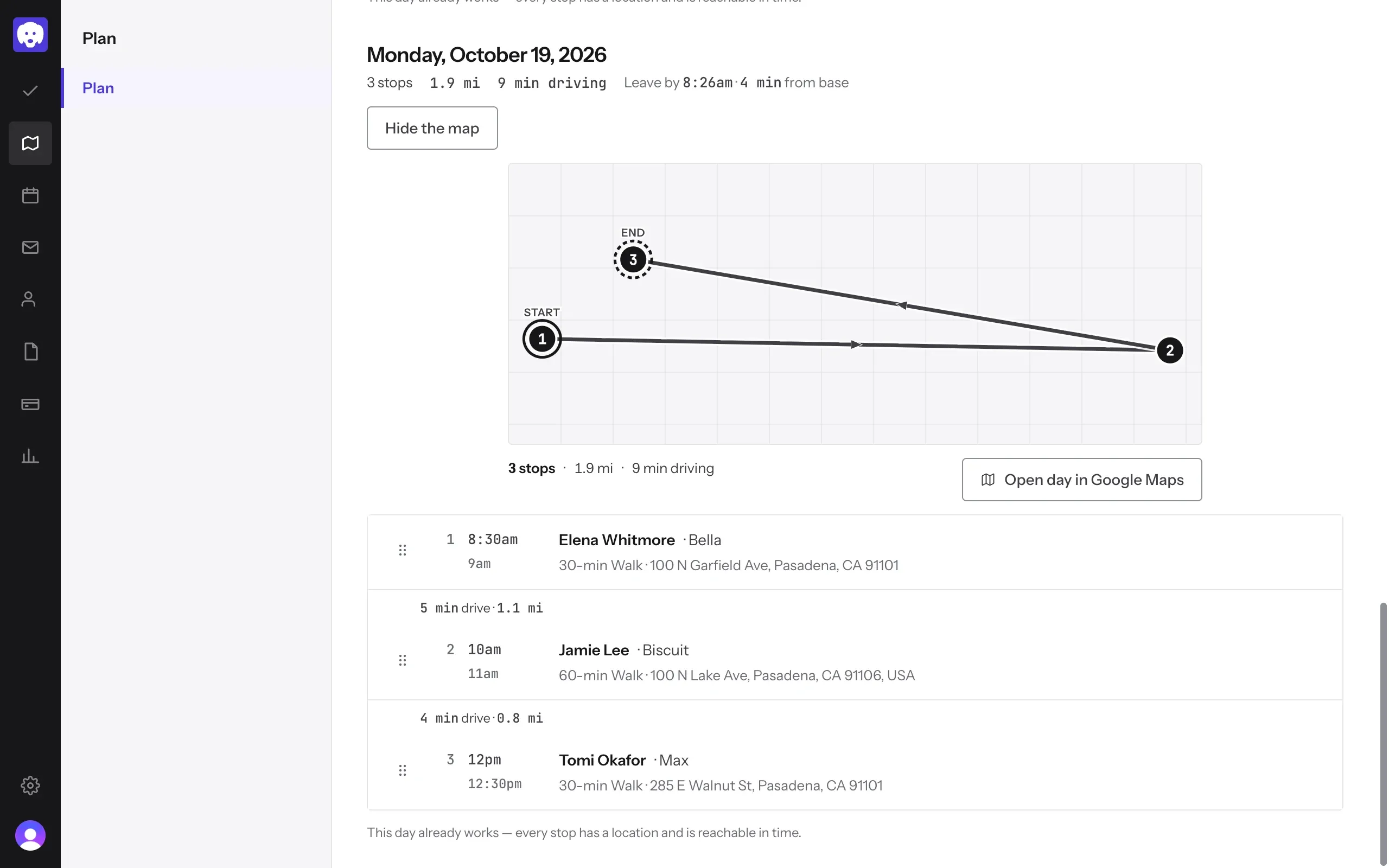
Scroll to the day you want and click Show the map. The map numbers each stop from START to END, with arrows for the way you’ll drive. Below it are the total stops, miles and driving time.
Click Open day in Google Maps to get turn-by-turn directions for the whole day.
Change the order you drive in
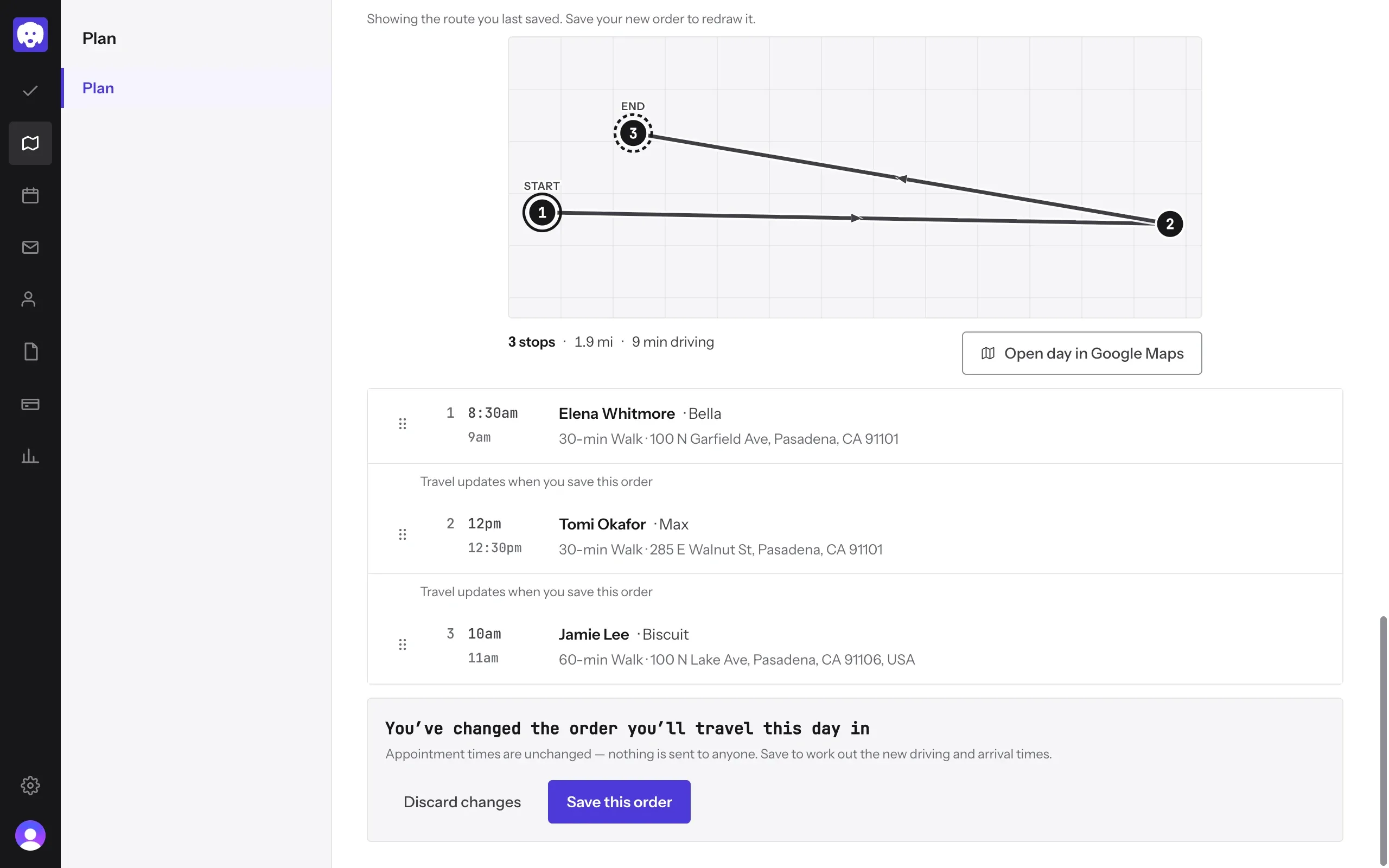
Drag a stop by its handle to a new place, or click the handle and use the up and down arrow keys. Reeve shows Travel updates when you save this order until you save.
Click Save this order, or Discard changes to put it back. Appointment times stay the same, and nothing is sent to your clients.
Check the new route
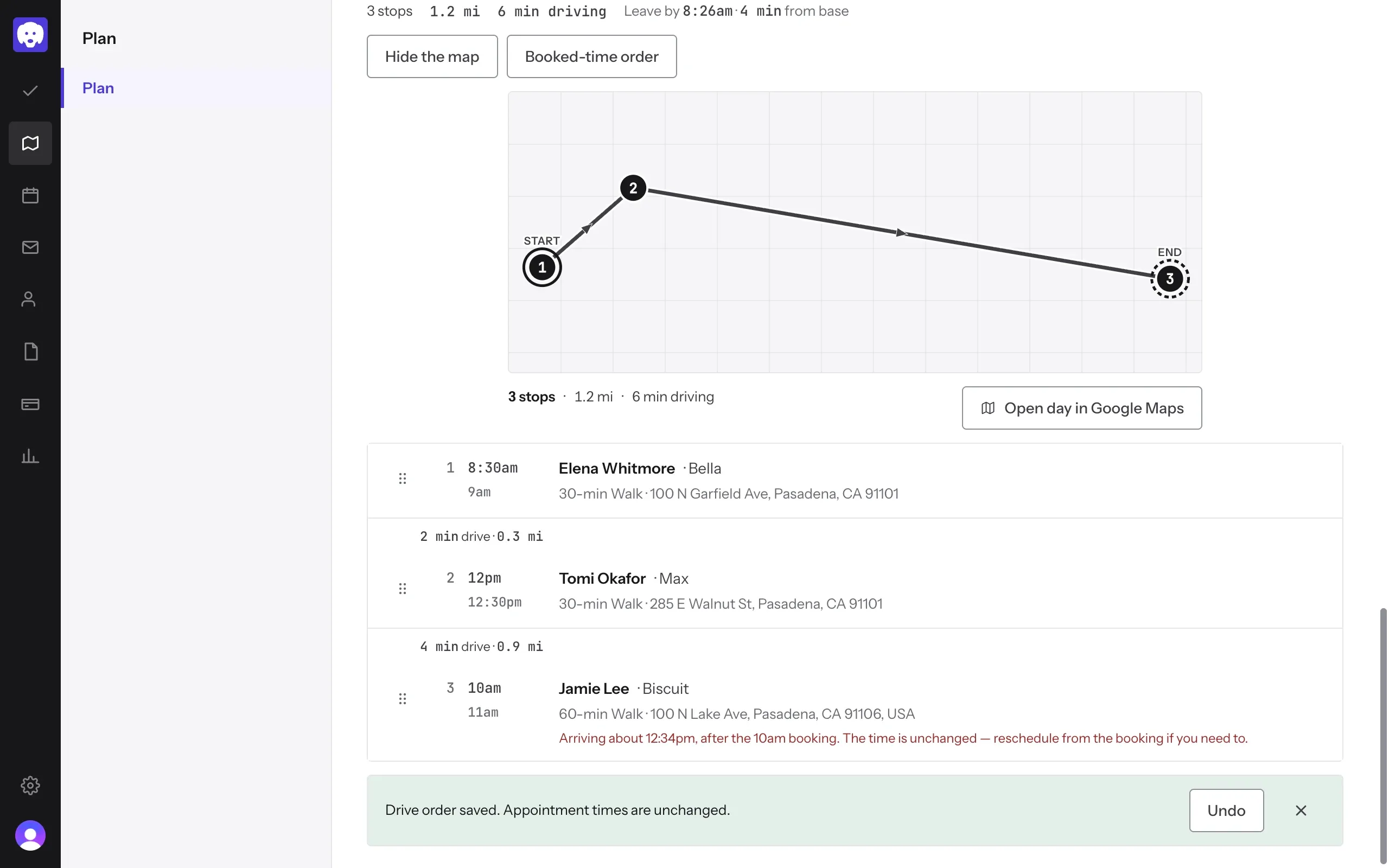
Reeve works out the new driving and redraws the map. If the new order gets you to a stop after its booked time, it says so in red, with the time you’d arrive. The booking time doesn’t change; reschedule the booking yourself if you need to.
Changed your mind? Click Undo, or Booked-time order to go back to the order the visits were booked in.
See your mileage
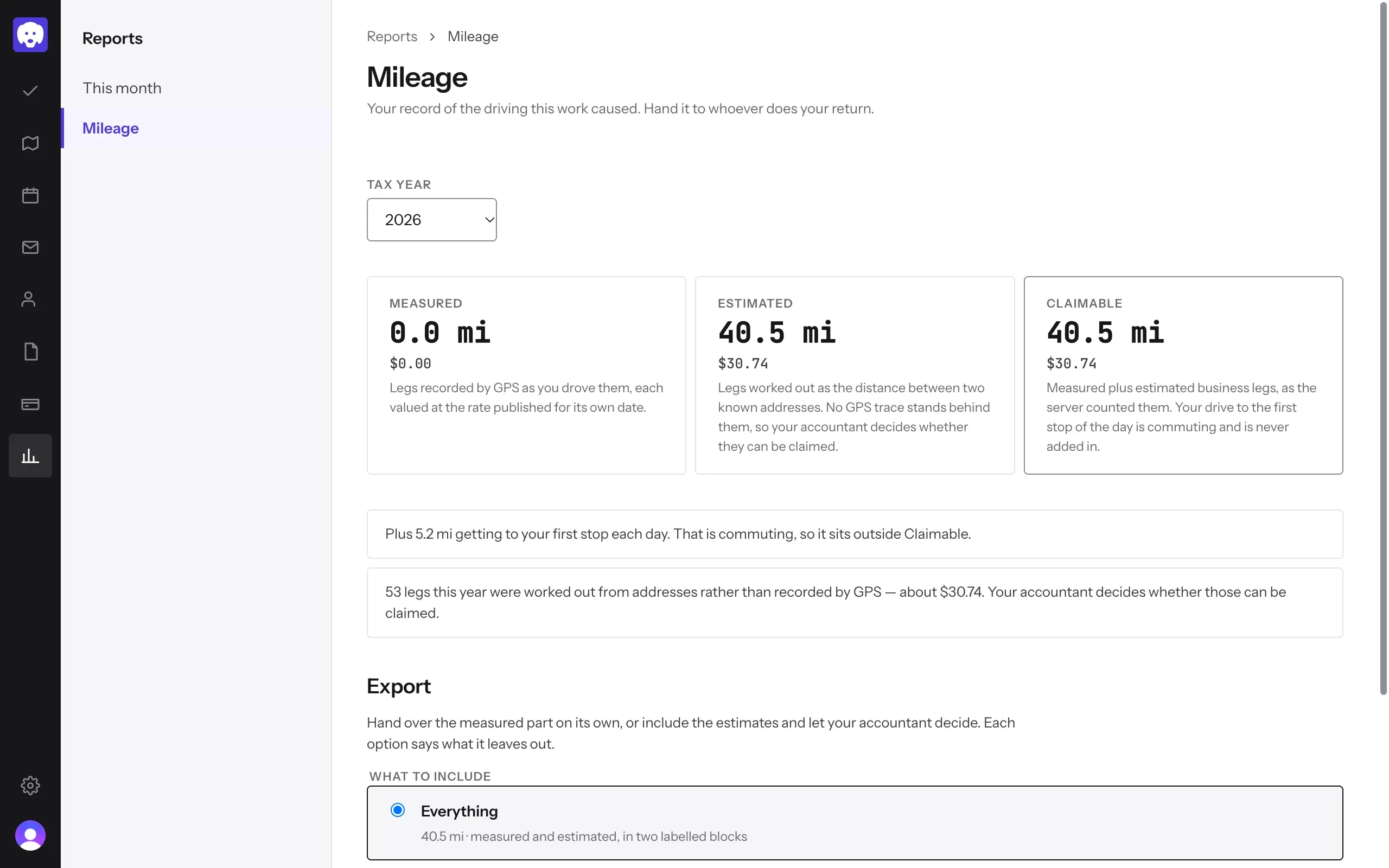
Click Reports in the left-hand bar, then Mileage. Choose the Tax year. Reeve keeps a record of the driving your work causes, valued at the IRS mileage rate for each drive’s date:
- Measured: drives recorded by GPS as you drove them.
- Estimated: drives worked out from the distance between two addresses. Your accountant decides whether these can be claimed.
- Claimable: measured and estimated business miles together.
Your drive from home to the first stop of the day is commuting, so Reeve shows it separately and never adds it to Claimable.
Export it for your accountant
Under Export, choose What to include: Everything (measured and estimated, in two labelled blocks) or Measured legs only. Click Download CSV for a spreadsheet, or Print summary for a paper copy.
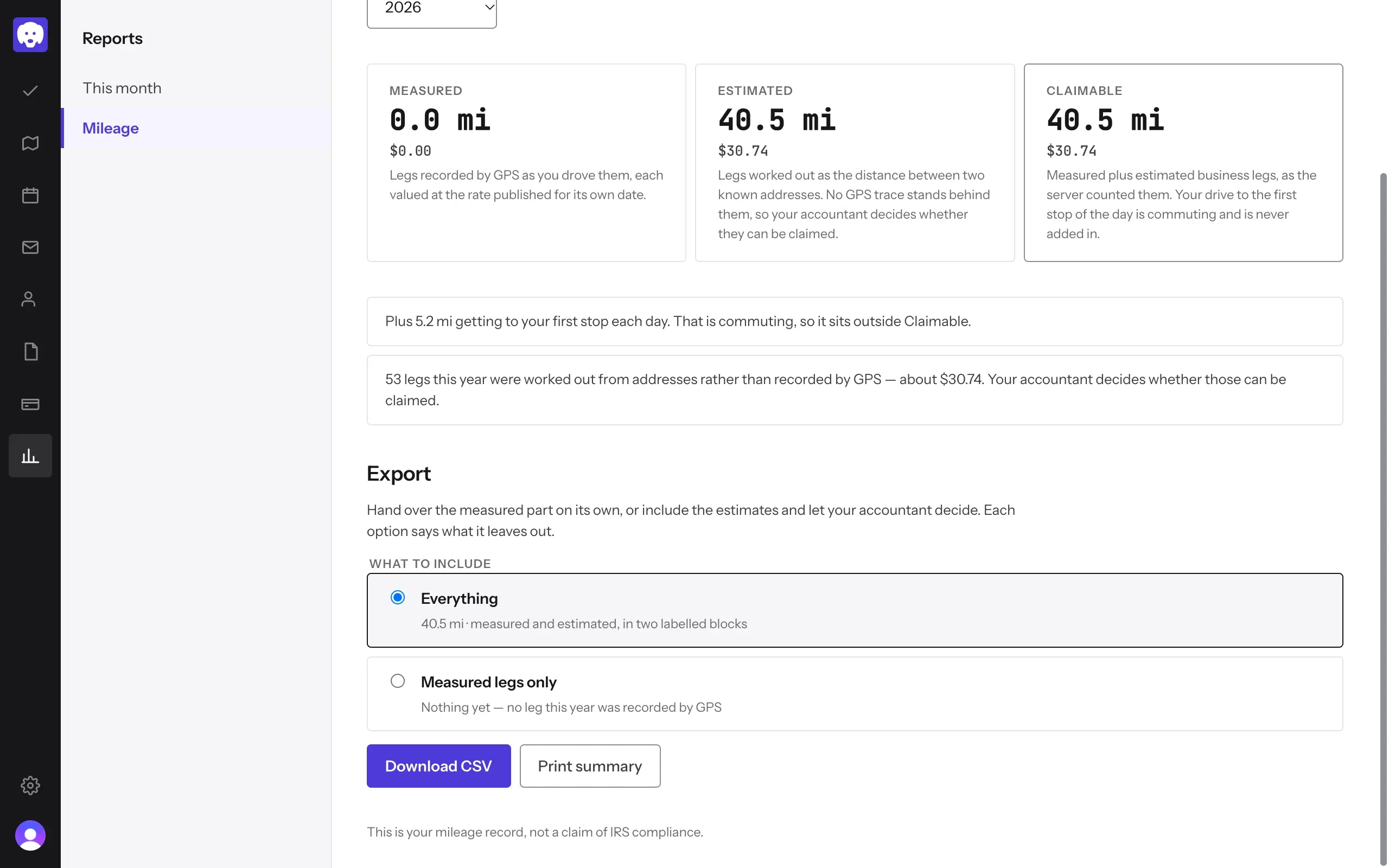
The mileage log is your record. It isn’t tax advice, so check with your accountant what you can claim.
What’s next
On the day, start and finish each visit from Today.
Still stuck?
Email us and a person will help, or book a 15-minute call and we'll walk through it with you.
admin@reeve.pet