Take a booking
Create a booking in four short steps. Nothing is saved until you confirm.
Time: Under a minute · Updated Oct 13, 2026
Before you start
- At least one service.
- A client with a pet.
Start a booking and pick the pets and service
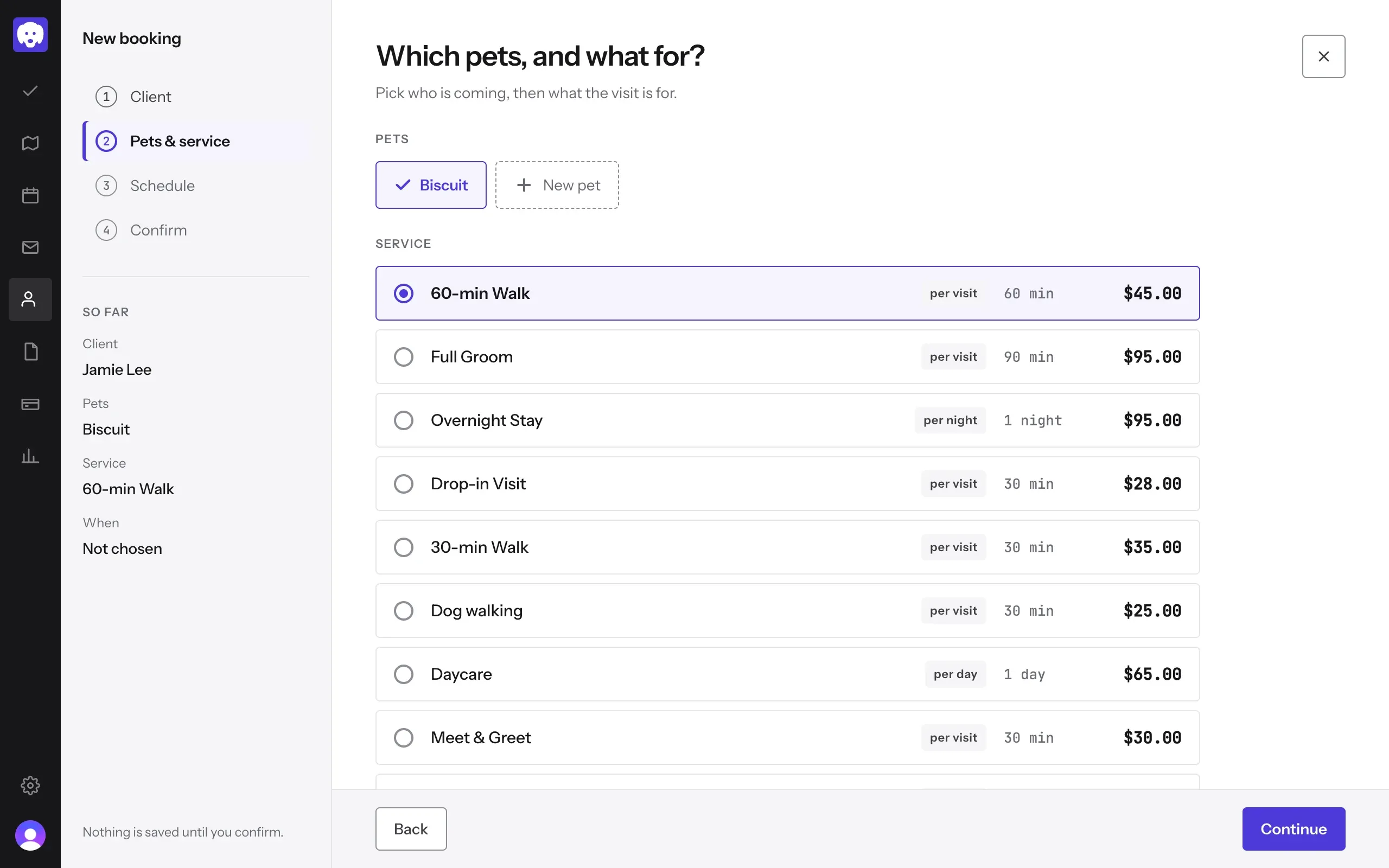
Open the client and click Book a visit, or go to Schedule and click New booking. The booking runs in four steps: Client, Pets & service, Schedule, Confirm. Starting from a client skips the first one.
Under Which pets, and what for?, tick the pets coming and choose the service. Each service shows how it’s billed, its length and its price. Click Continue.
Pick the date and time
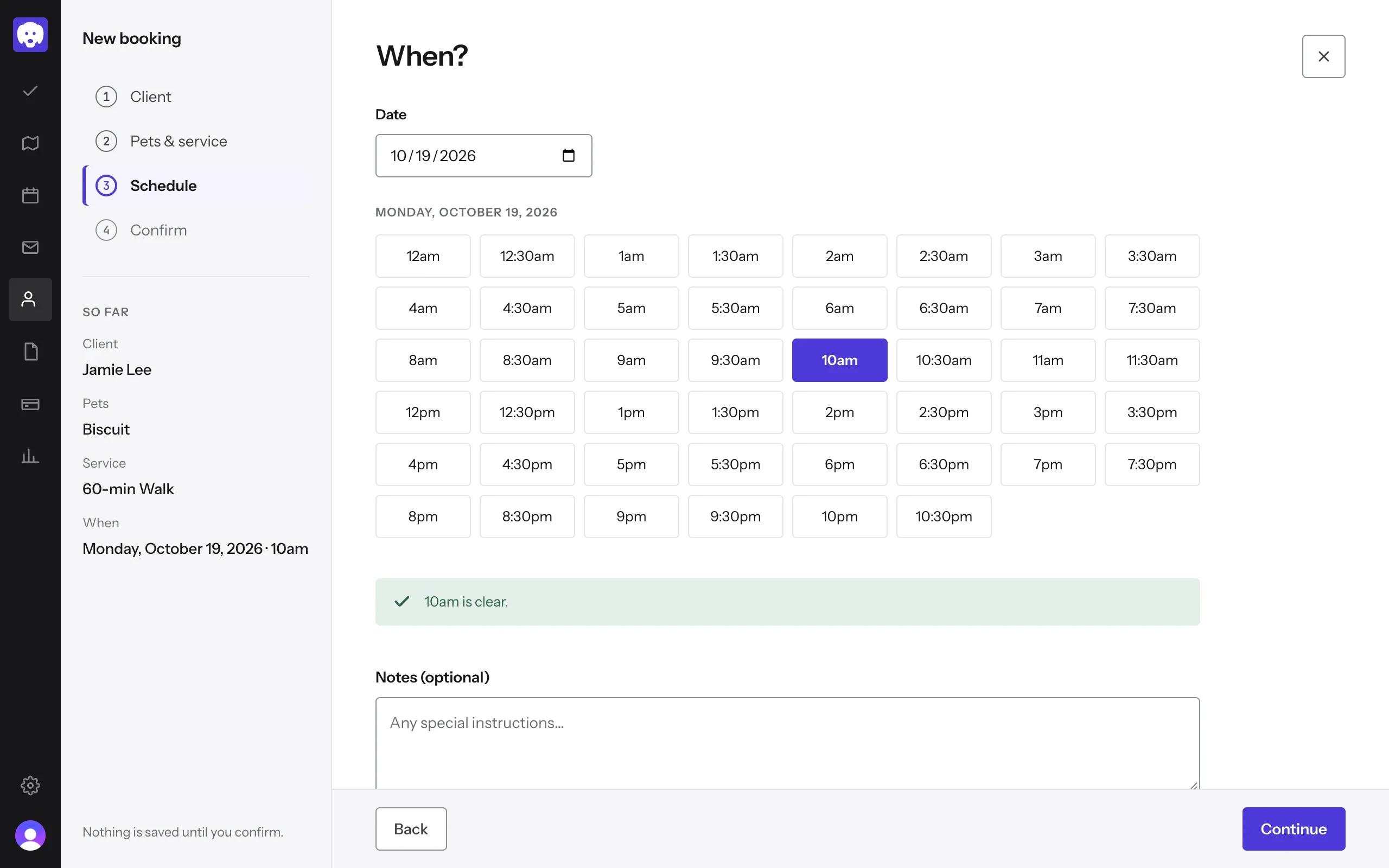
Under When?, choose the Date, then a time. Reeve tells you if the time is clear, or if it overlaps another booking (you can still book it). Add Notes if the visit needs them. Click Continue.
Check it over
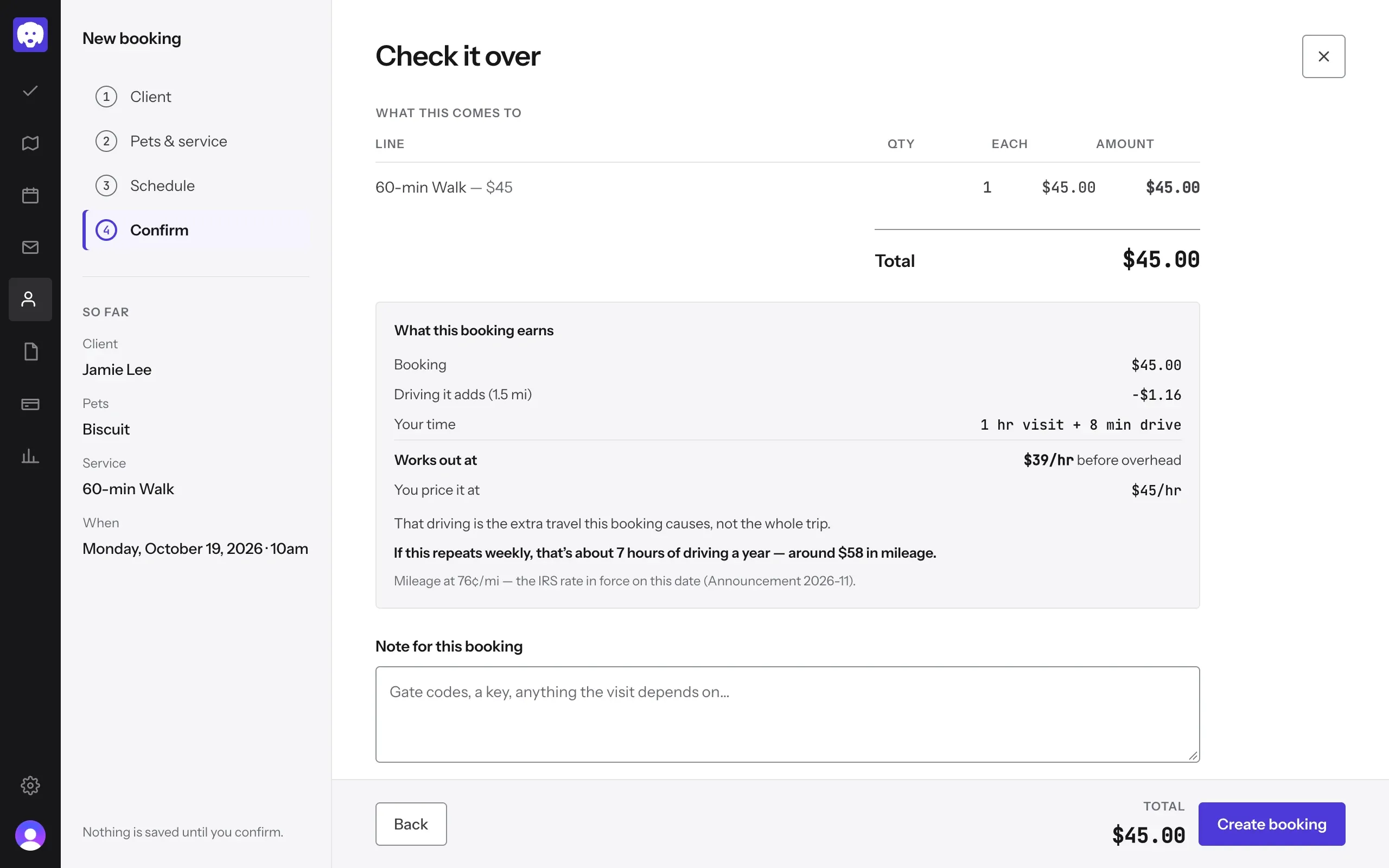
Check it over shows what the booking comes to, and What this booking earns: the extra driving it adds and what it works out at per hour. Add a Note for this booking for anything the visit depends on, like a gate code.
Click Create booking.
Done
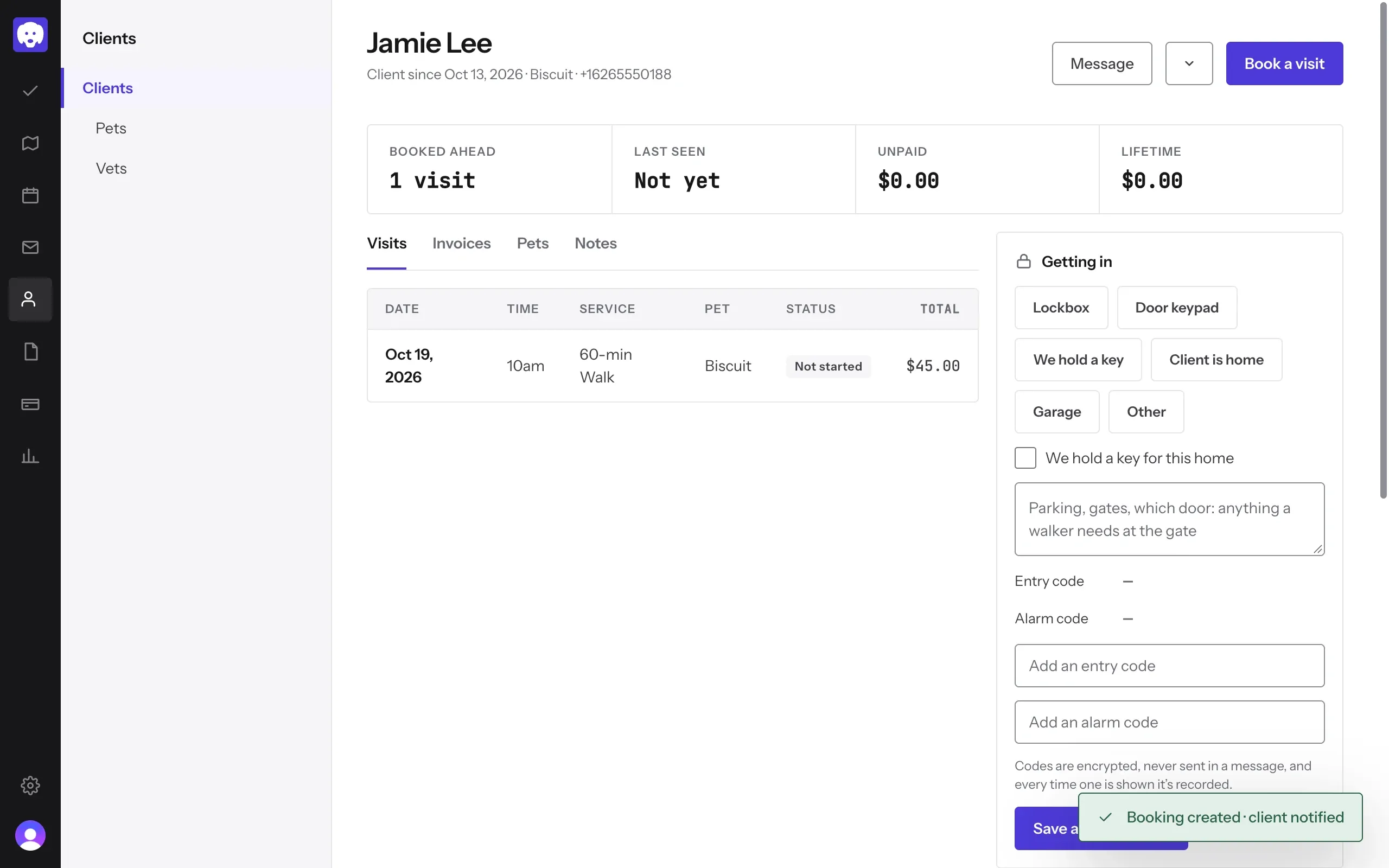
The visit appears on the client’s page and your Schedule. Reeve sends the client a confirmation, then a reminder before the visit, both automatically. You can change the wording in Settings → Automated messages.
What’s next
On the day, start and finish the visit from Today.
Still stuck?
Email us and a person will help, or book a 15-minute call and we'll walk through it with you.
admin@reeve.pet