Move your clients into Reeve
Import your whole client list from a .csv file, instead of adding clients one by one.
Time: About 5 minutes · Updated Oct 13, 2026
Before you start
- Your client list saved as a .csv file. Most tools, including Time To Pet, Gingr and PetExec, can export one, and any spreadsheet can save as .csv.
Start an import
Click Clients in the left-hand bar, then Import at the top right. Under Where are your clients coming from?, choose CSV / Excel, or Other software if you’re moving from Gingr, PetExec, Time To Pet or another tool. Both take a .csv file. Click Next.
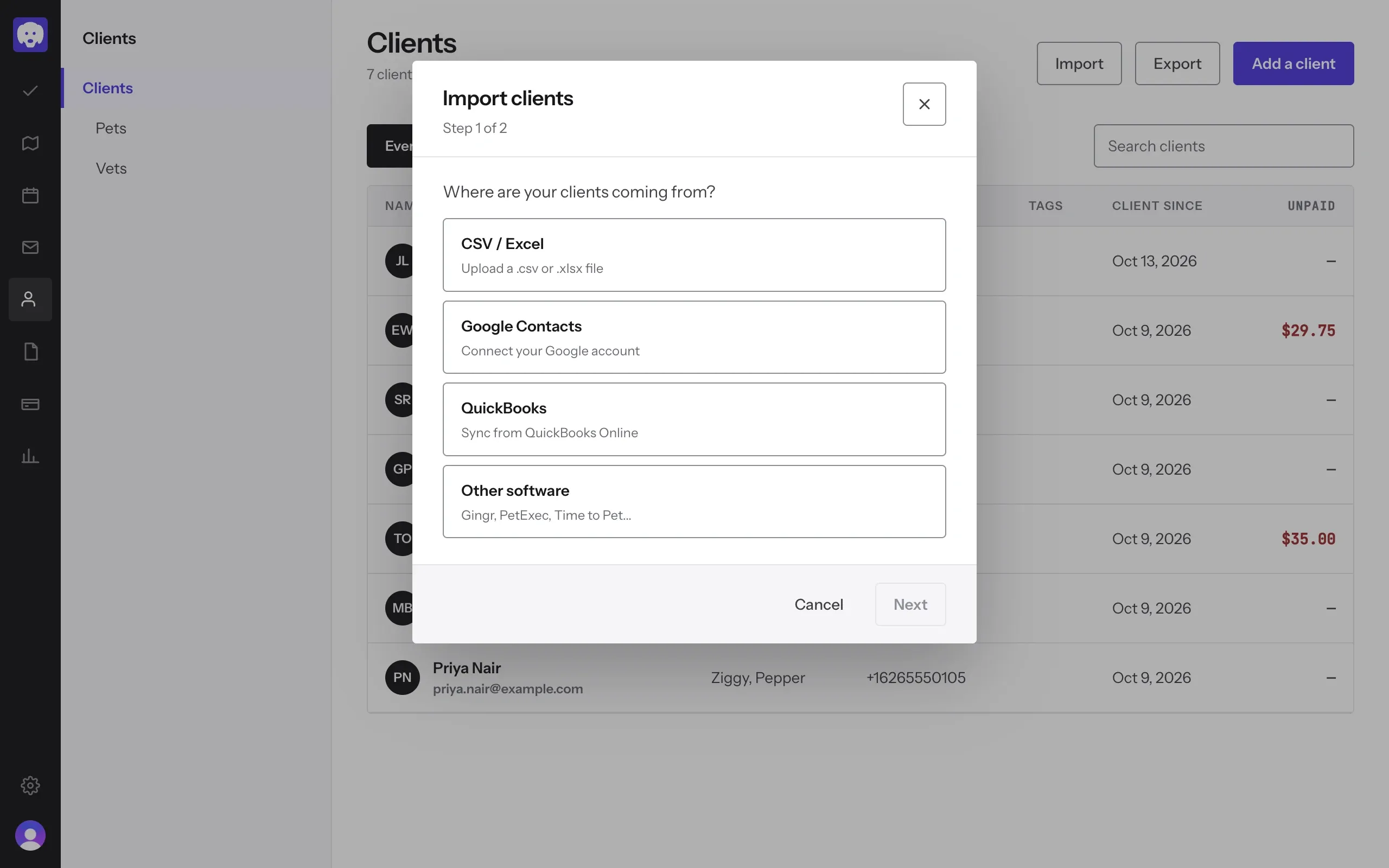
Coming from Excel? Save the sheet as .csv first (File → Save As → CSV). The import takes .csv files only.
Check your columns and upload
Your file needs a first_name and a last_name column. It can also have email, phone, address, source, tags and note; use those exact column names in the first row. Click Choose a .csv file, pick it (up to 10MB), then click Import.
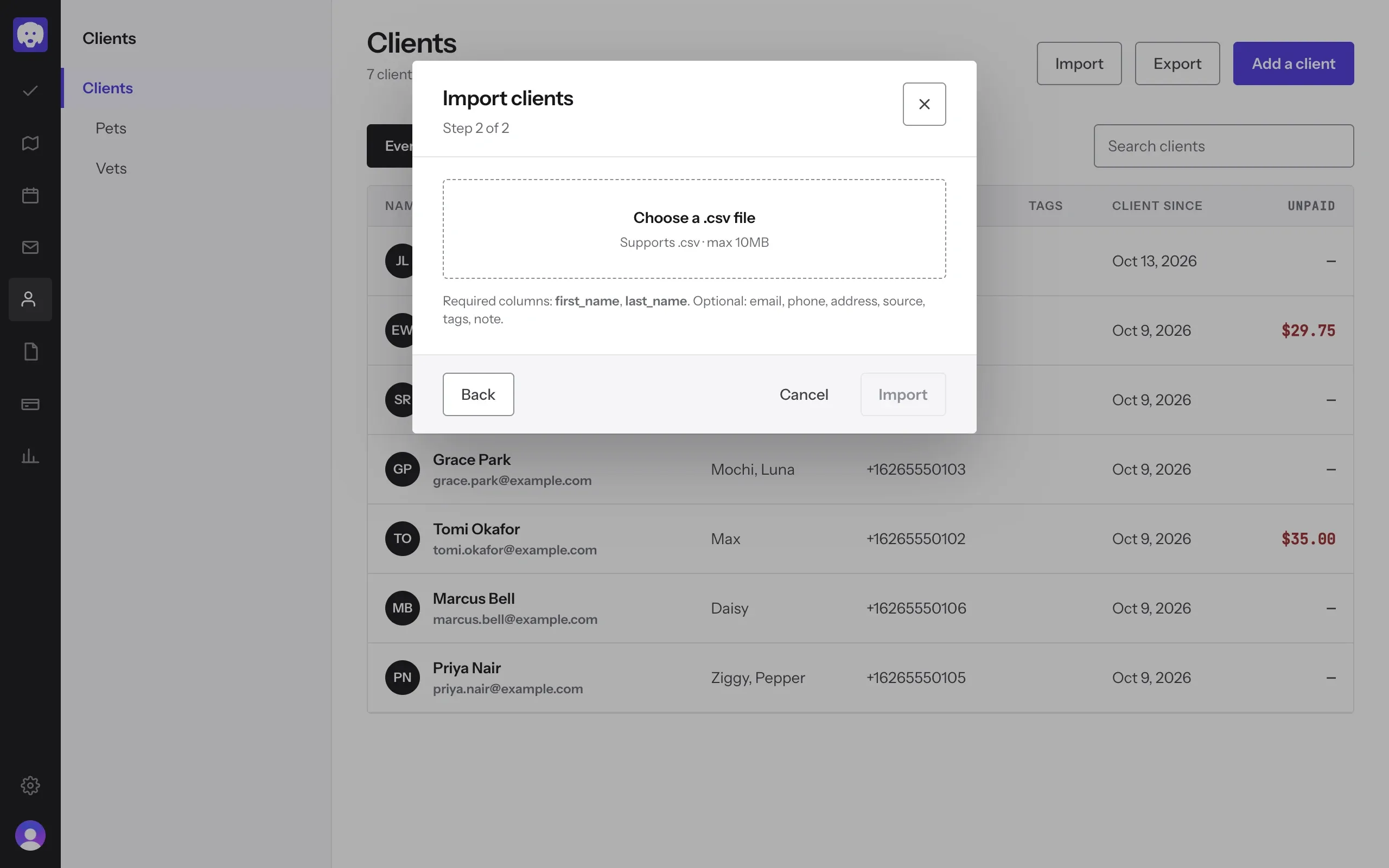
Check the result
Reeve tells you how many clients it imported and how many it skipped, for example “2 imported, 1 skipped”. A row is skipped when it’s missing a first or last name. Your new clients appear in the list straight away; add their pets from each client’s page.
Rather not do it yourself? A person at Reeve will move your clients, pets and notes over for you. Book an intro call and we’ll take it from there.
What’s next
Add their pets, then share your booking page with them.
Still stuck?
Email us and a person will help, or book a 15-minute call and we'll walk through it with you.
admin@reeve.pet