Share your booking page
Turn on your booking page, choose what it shows, and share it by link or QR code.
Time: About 2 minutes · Updated Oct 13, 2026
Before you start
- At least one service, so there's something to book.
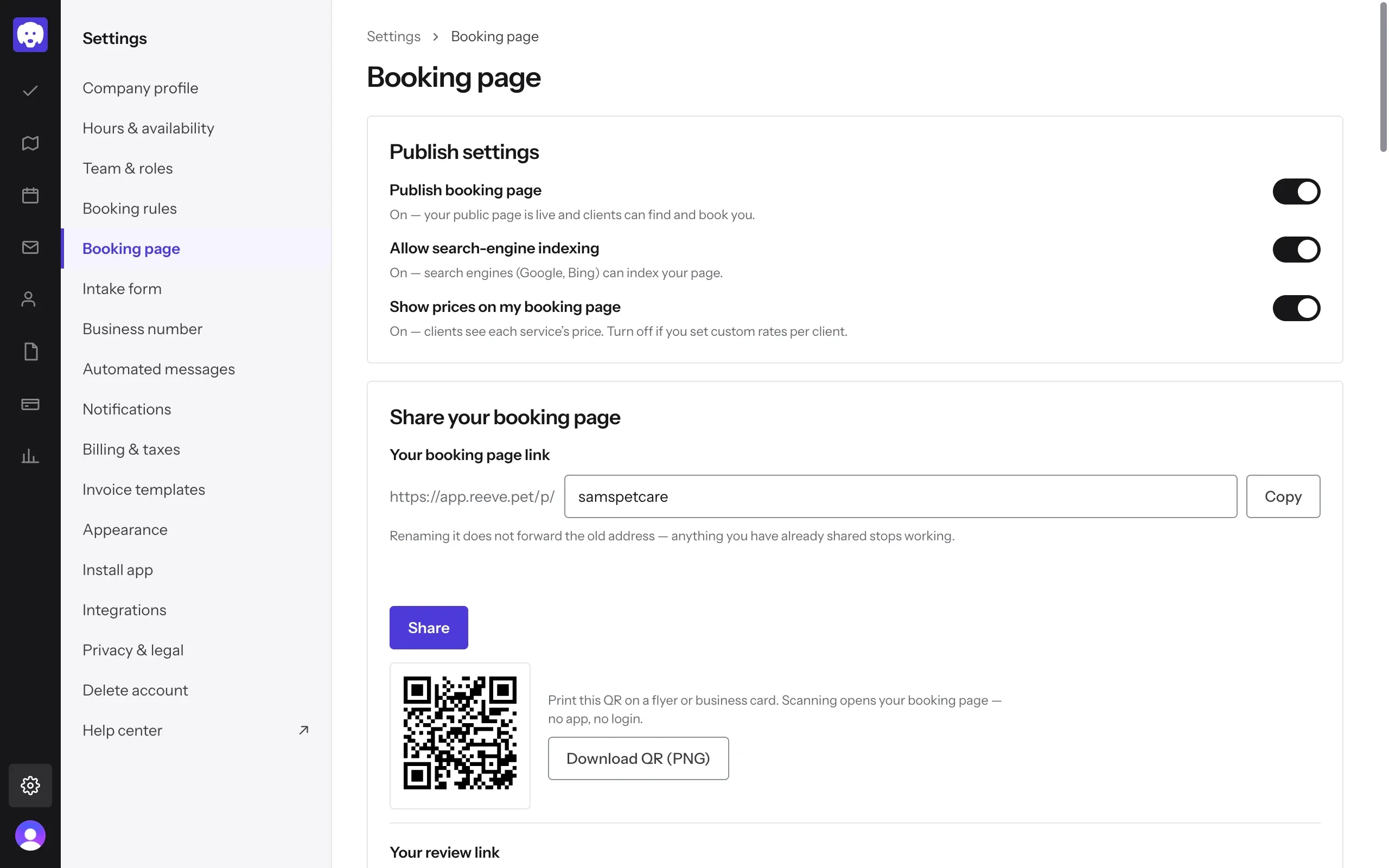
Publish your booking page
Go to Settings → Booking page. Under Publish settings:
- Publish booking page puts your page live, so clients can find and book you.
- Allow search-engine indexing lets Google and Bing list it.
- Show prices on my booking page shows each service’s price. Turn it off if you set custom rates per client.
Share the link or the QR code
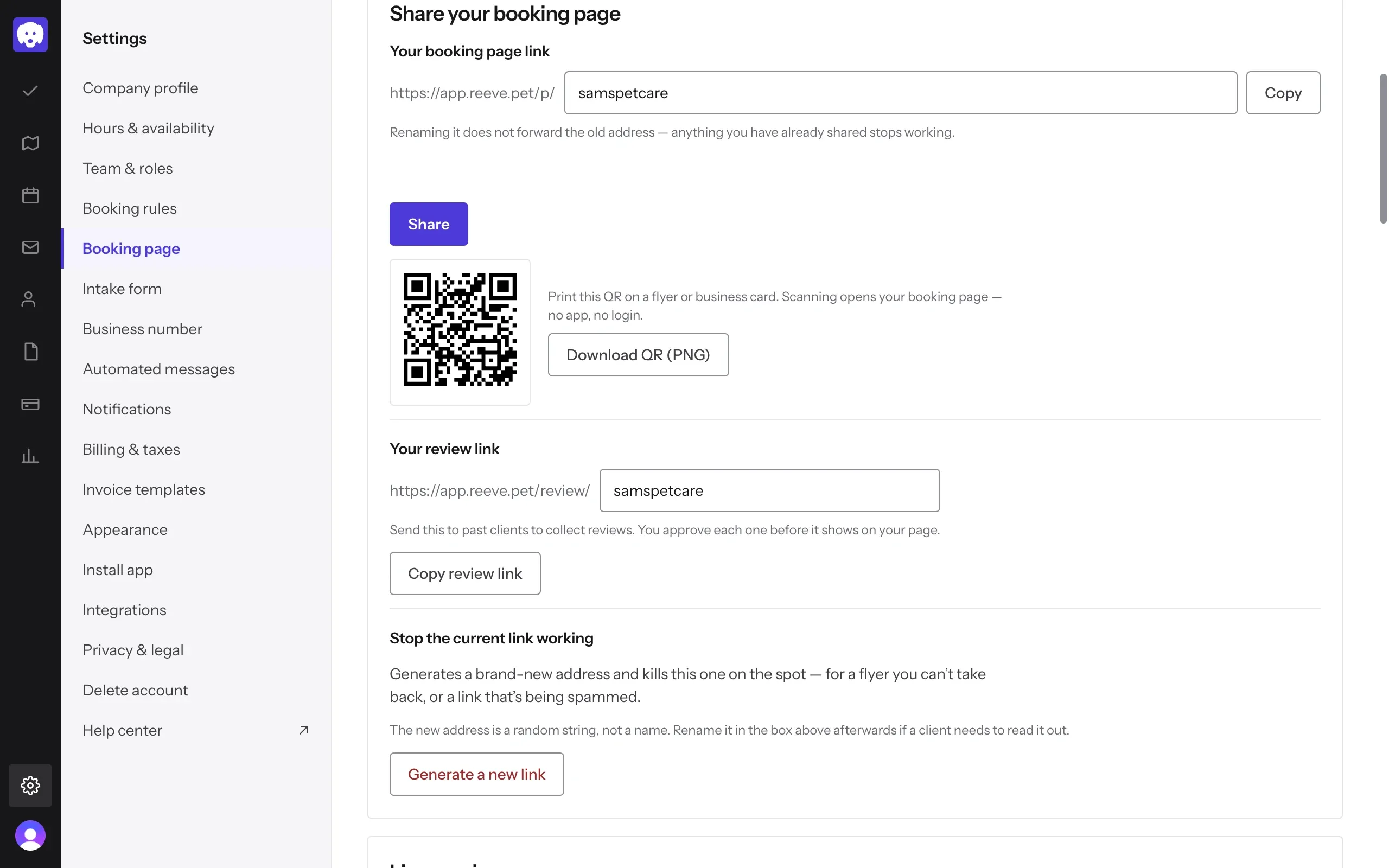
Under Share your booking page, Your booking page link is the address to give clients. You can rename the end of it, but the old address then stops working. Click Copy to paste it into a text, email or your Instagram bio, or Share to send it from your phone.
Click Download QR (PNG) for a QR code to print on flyers and business cards. Scanning it opens your page: no app, no login.
Your review link asks past clients for a review; you approve each one before it shows on your page.
See what clients see
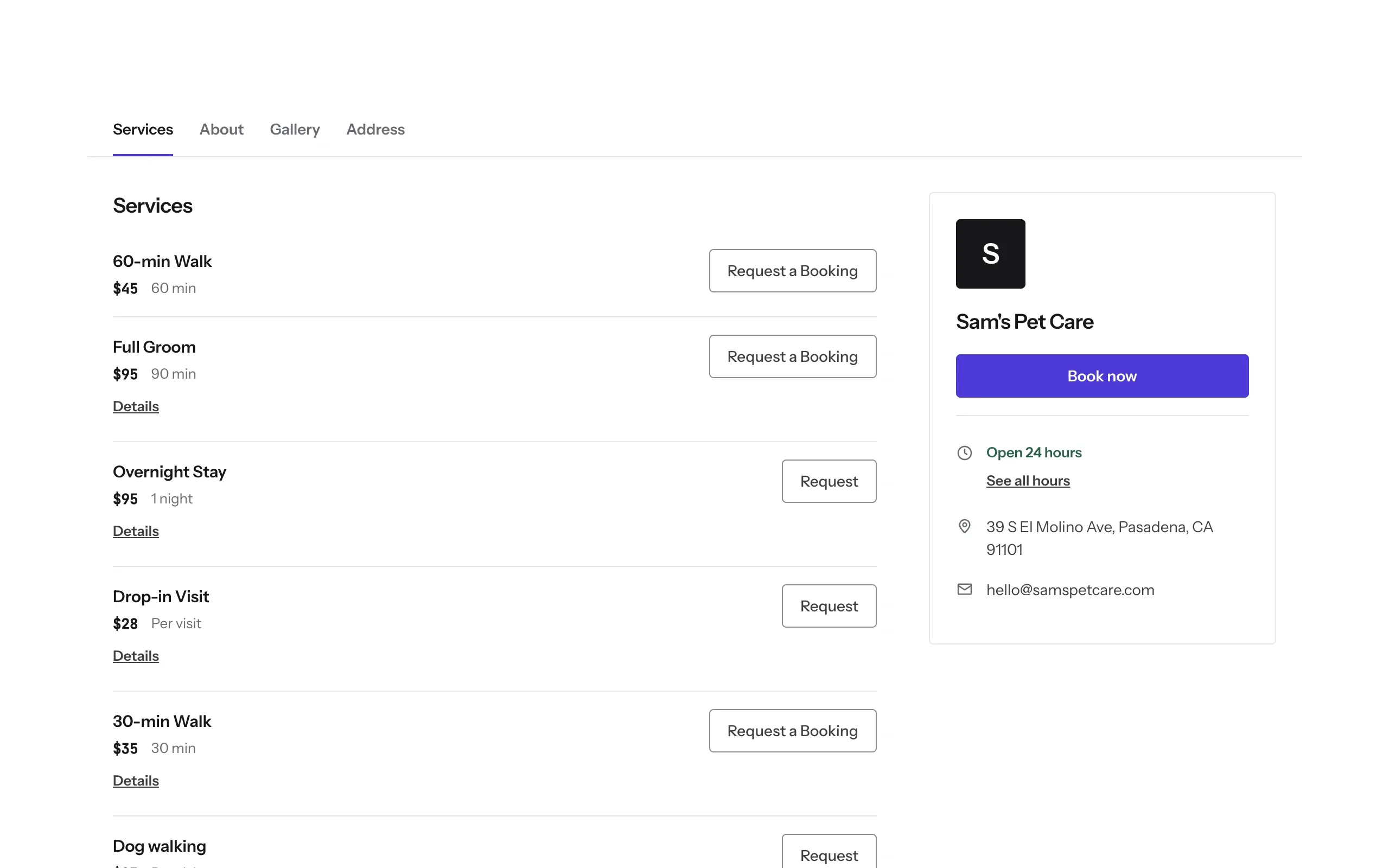
Open your link. Clients see your services and prices, your hours and how to reach you. They pick a service and send a request; they never make an account.
What’s next
When a request comes in, handle the booking request.
Still stuck?
Email us and a person will help, or book a 15-minute call and we'll walk through it with you.
admin@reeve.pet