Holidays and days off
Your booking page stops offering the days you're off, and holiday bookings are priced the way you want.
Time: About two minutes · Updated Oct 13, 2026
Before you start
- At least one service.
Open Holidays
Click Services in the left-hand bar, then Holidays. Each holiday is either a day you don’t work (Not working) or a day you charge more (Percentage or Flat rate). The chips at the top count how many are Charging more, Closed and Past.
Click a holiday to change it, or Delete to remove it.
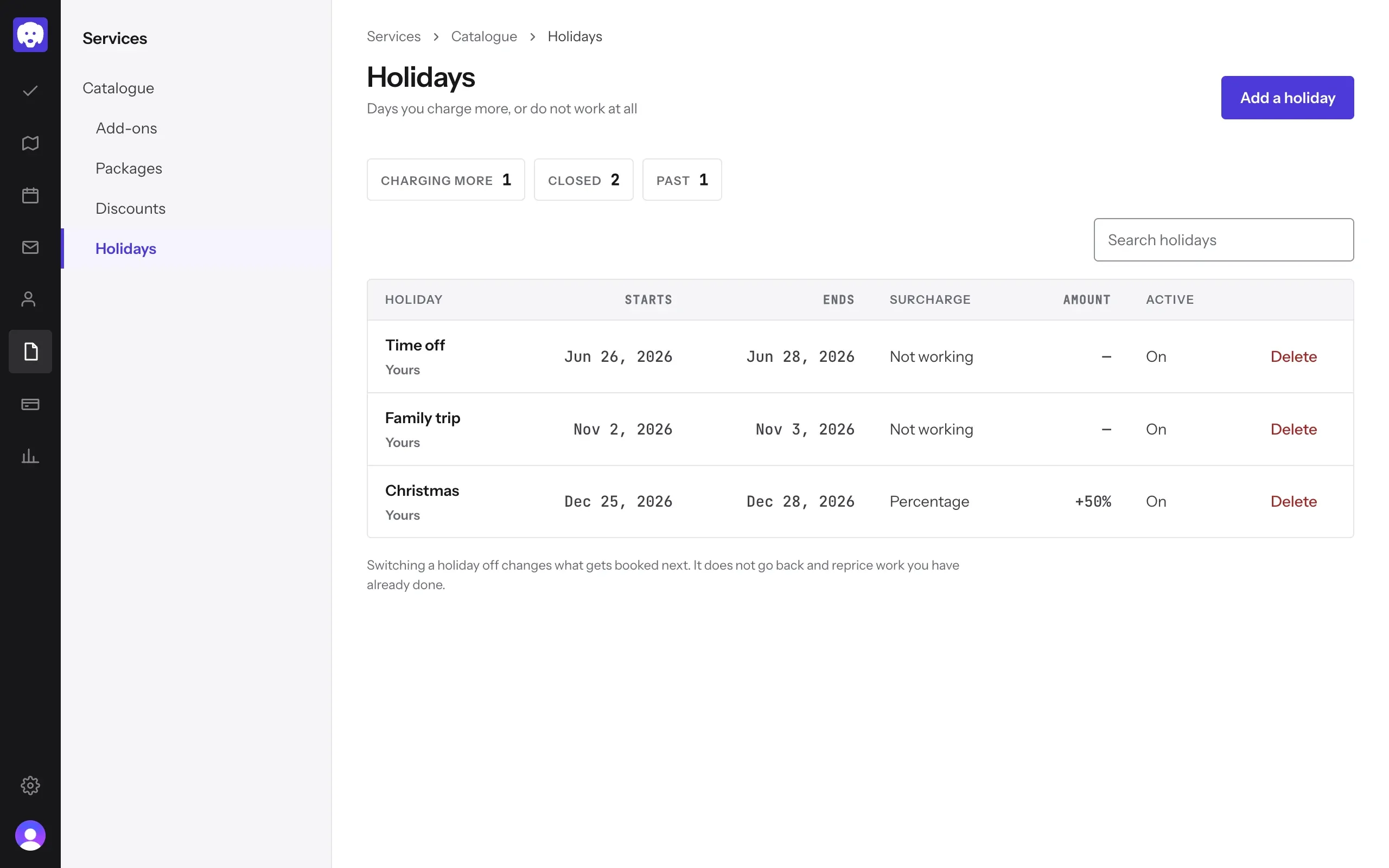
With nothing on this list, every day bills at your normal price, Christmas included.
Block out a day off
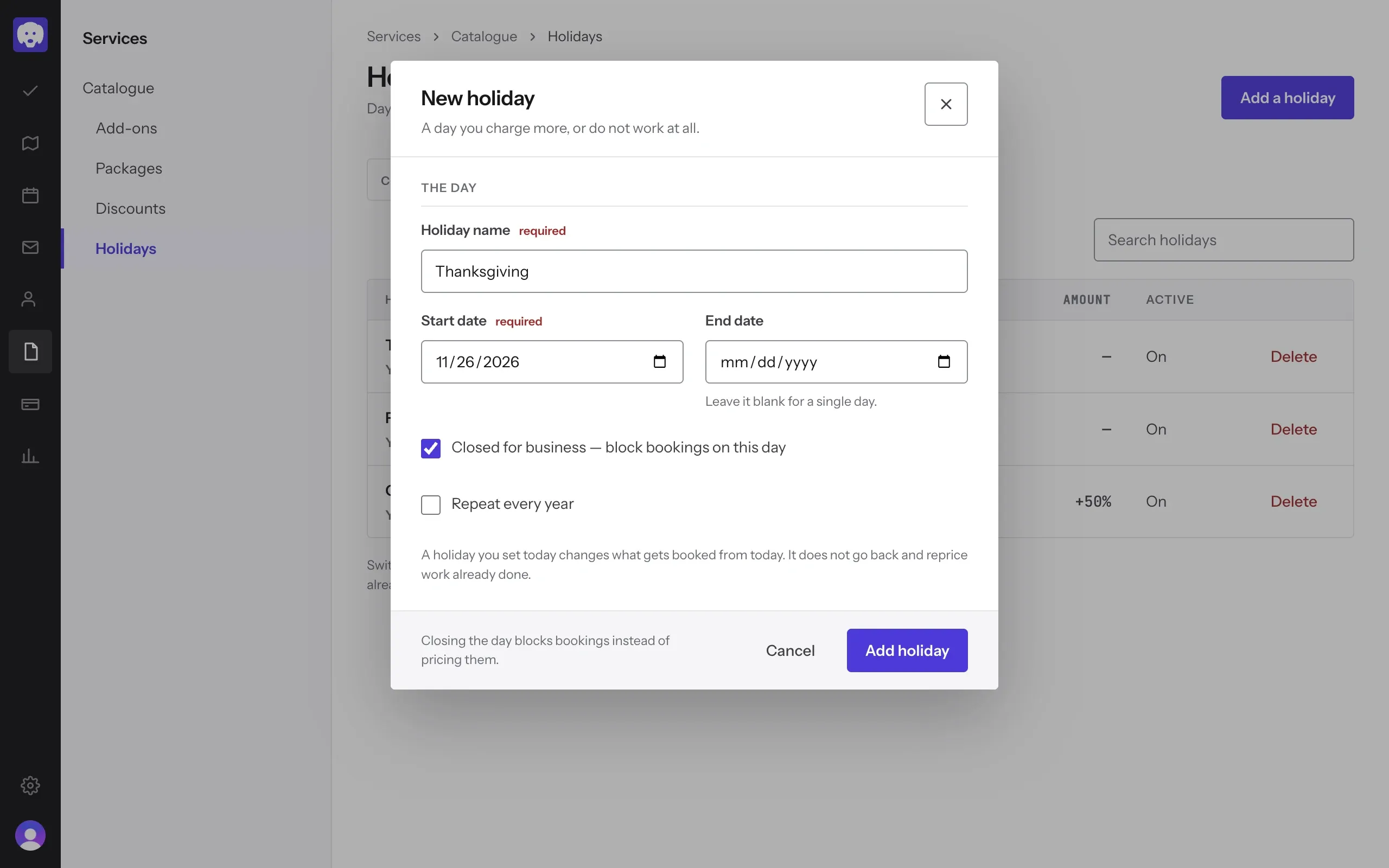
Click Add a holiday. Give it a Holiday name and a Start date. For a trip or a run of days, add an End date; leave it blank for a single day.
Keep Closed for business — block bookings on this day ticked. Tick Repeat every year for a date that falls on the same day each year. Click Add holiday.
Your booking page won’t offer times on a closed day.
Charge more on a holiday
To work the day but charge extra, untick Closed for business. Choose the Surcharge type: Percentage (%) or Flat rate ($), then enter the amount. Reeve shows what it means, for example “A $50 booking during this holiday would be $62.50”.
Keep Apply this surcharge to bookings ticked, then click Add holiday.
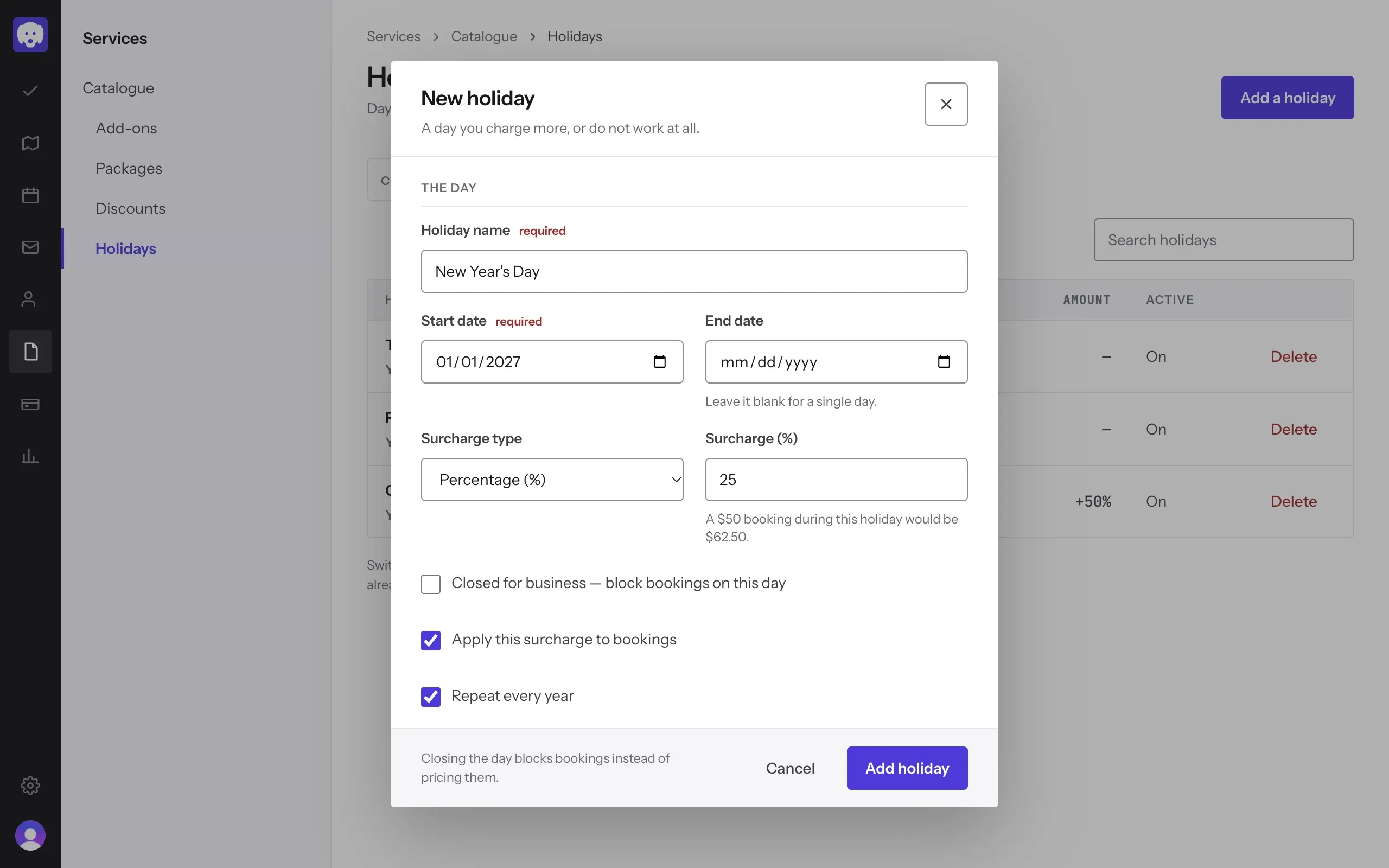
A holiday changes what gets booked from now on. It doesn’t reprice work you’ve already booked or done.
Set the days you work each week
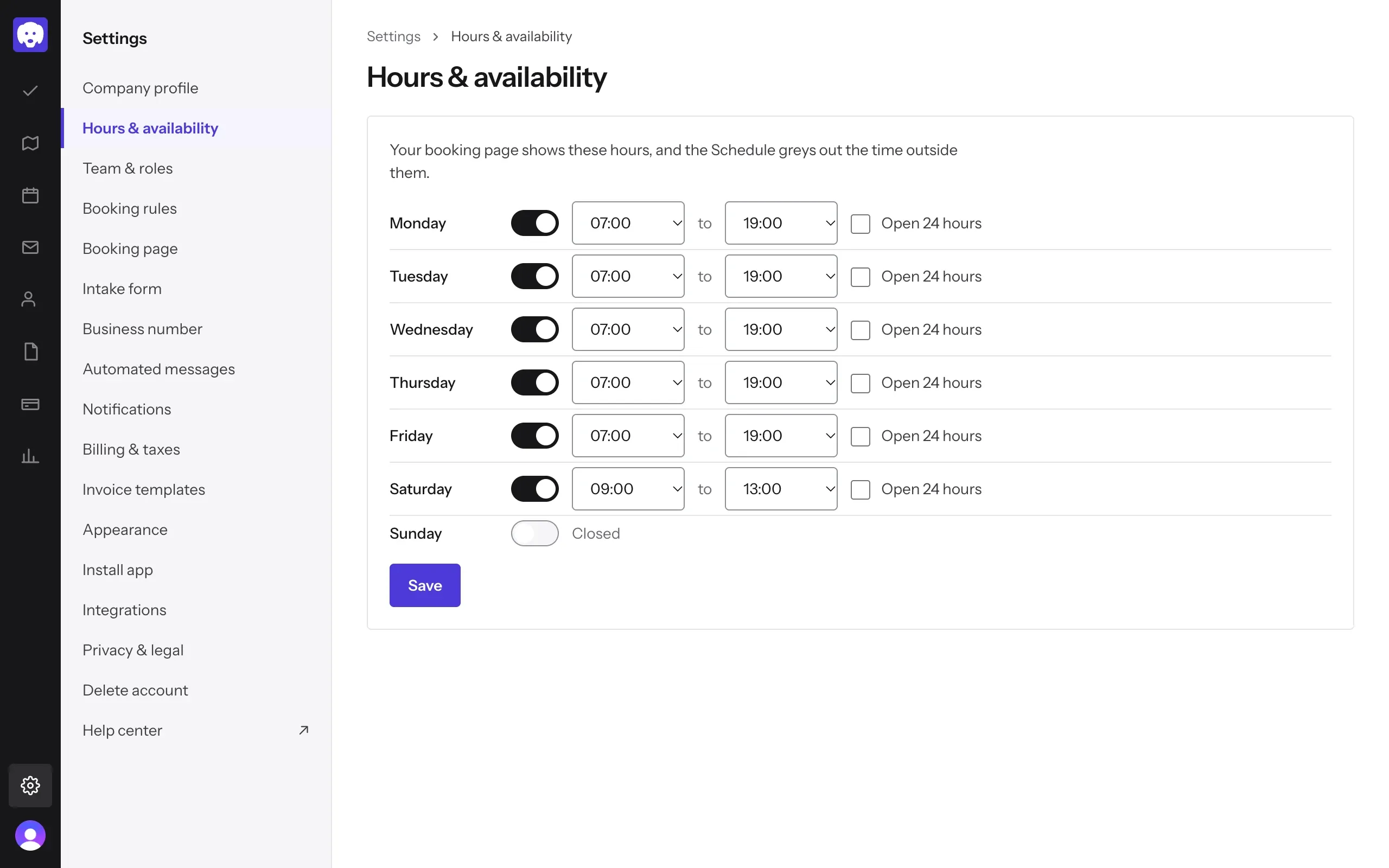
Days off that happen every week, like Sundays, belong in your hours rather than in Holidays. Click Settings, then Hours & availability.
Switch a day off to mark it Closed. For the days you work, untick Open 24 hours and choose your start and end times. Click Save.
Your booking page shows these hours, and the Schedule greys out the time outside them.
What’s next
Share your booking page so clients can book around your hours and days off.
Still stuck?
Email us and a person will help, or book a 15-minute call and we'll walk through it with you.
admin@reeve.pet