Add your team
Invite someone to your business and decide what Managers and Staff can see and do.
Time: About 2 minutes · Updated Oct 13, 2026
Before you start
- The email address of the person you're inviting.
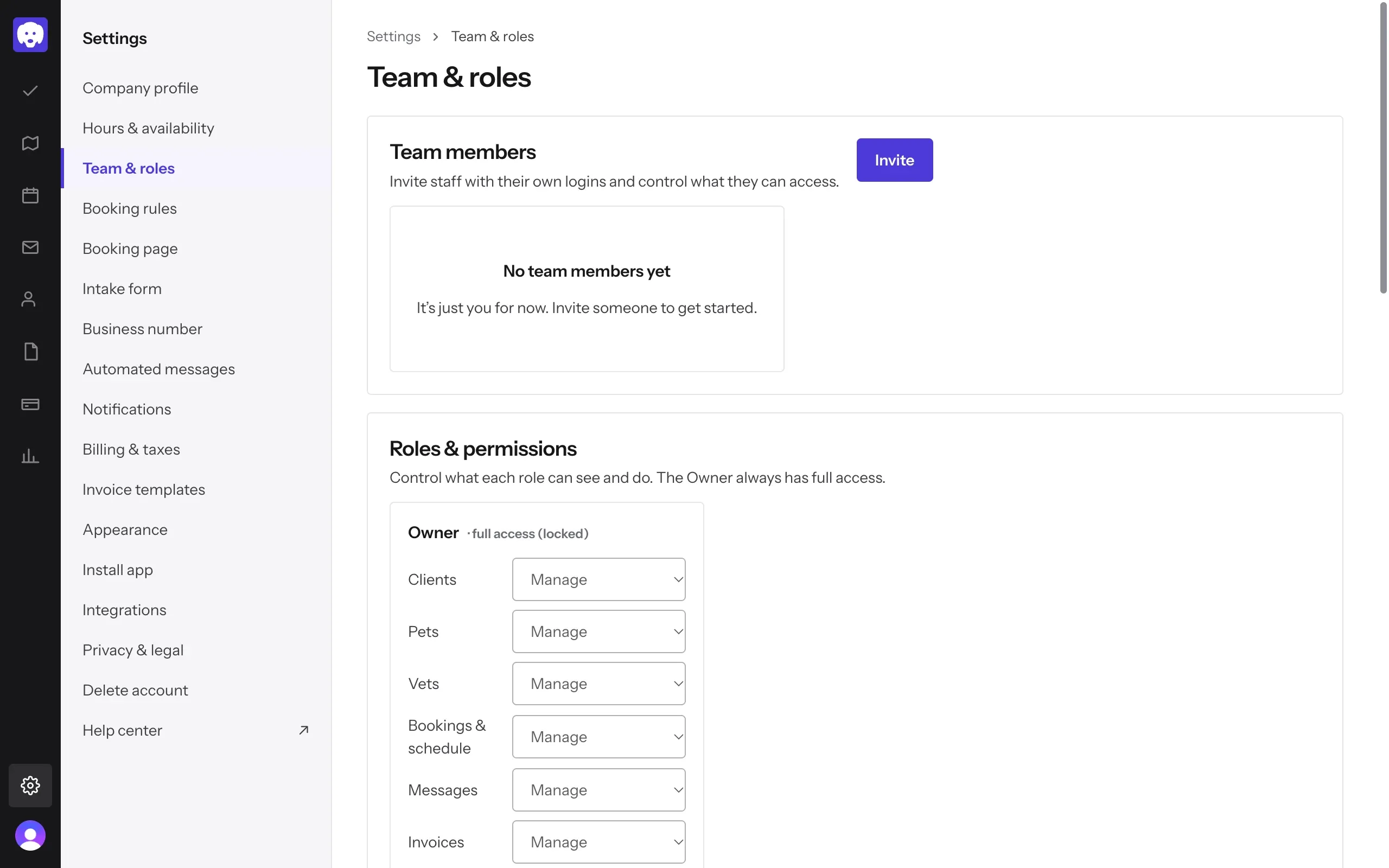
Open Team & roles
Go to Settings → Team & roles. Team members lists everyone on your team; until you invite someone it says “It’s just you for now”. Click Invite.
Invite them
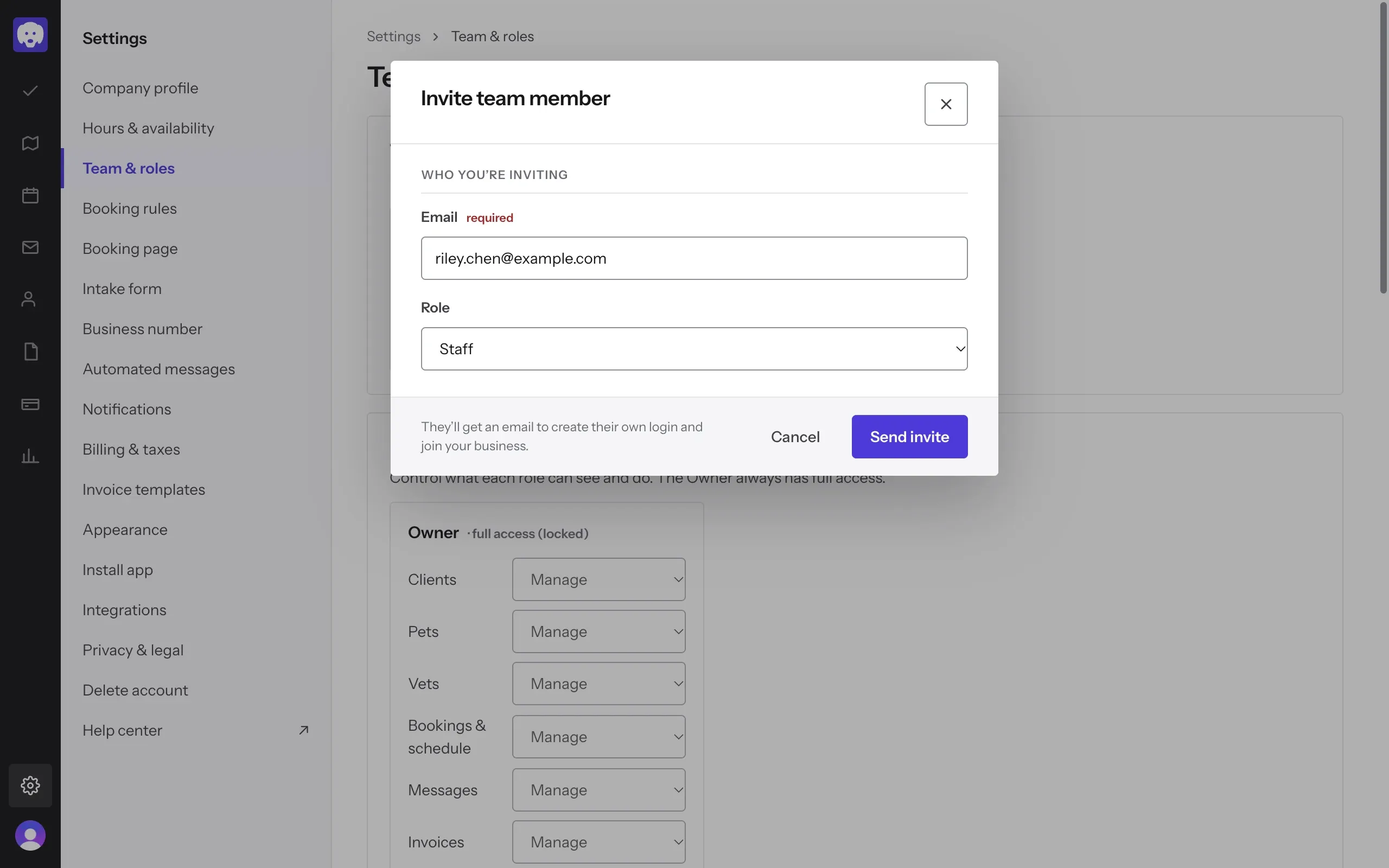
Enter their Email and choose a Role: Manager or Staff. Click Send invite. They get an email to create their own login and join your business, and show as Invited until they accept.
Choose what each role can do
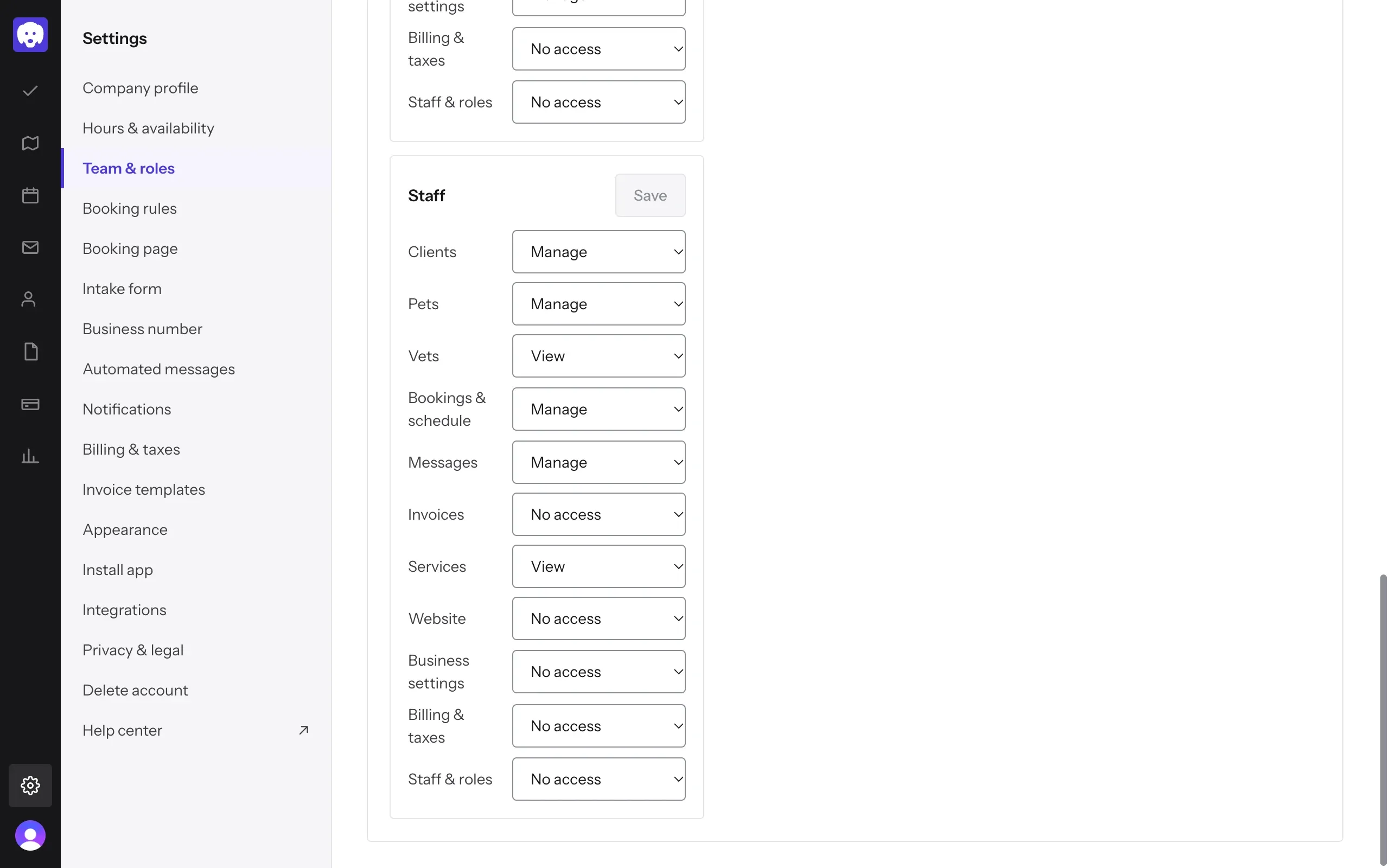
Under Roles & permissions, each role has a setting for every part of Reeve: Clients, Pets, Vets, Bookings & schedule, Messages, Invoices, Services, Website, Business settings, Billing & taxes and Staff & roles. Set each to No access, View or Manage, then click Save for that role. The Owner, which is you, always has full access.
For example, Staff start able to manage clients, bookings and messages, but can’t see invoices, billing or your settings.
Someone leaving? Use Remove beside their name. An invite you sent by mistake can be withdrawn with Cancel invite.
Still stuck?
Email us and a person will help, or book a 15-minute call and we'll walk through it with you.
admin@reeve.pet