Send an invoice and get paid
Create and issue an invoice, then mark it paid by Venmo, PayPal, Cash App, Stripe, cash or anything else.
Time: About a minute · Updated Oct 13, 2026
Before you start
- A client to bill.
Create the invoice
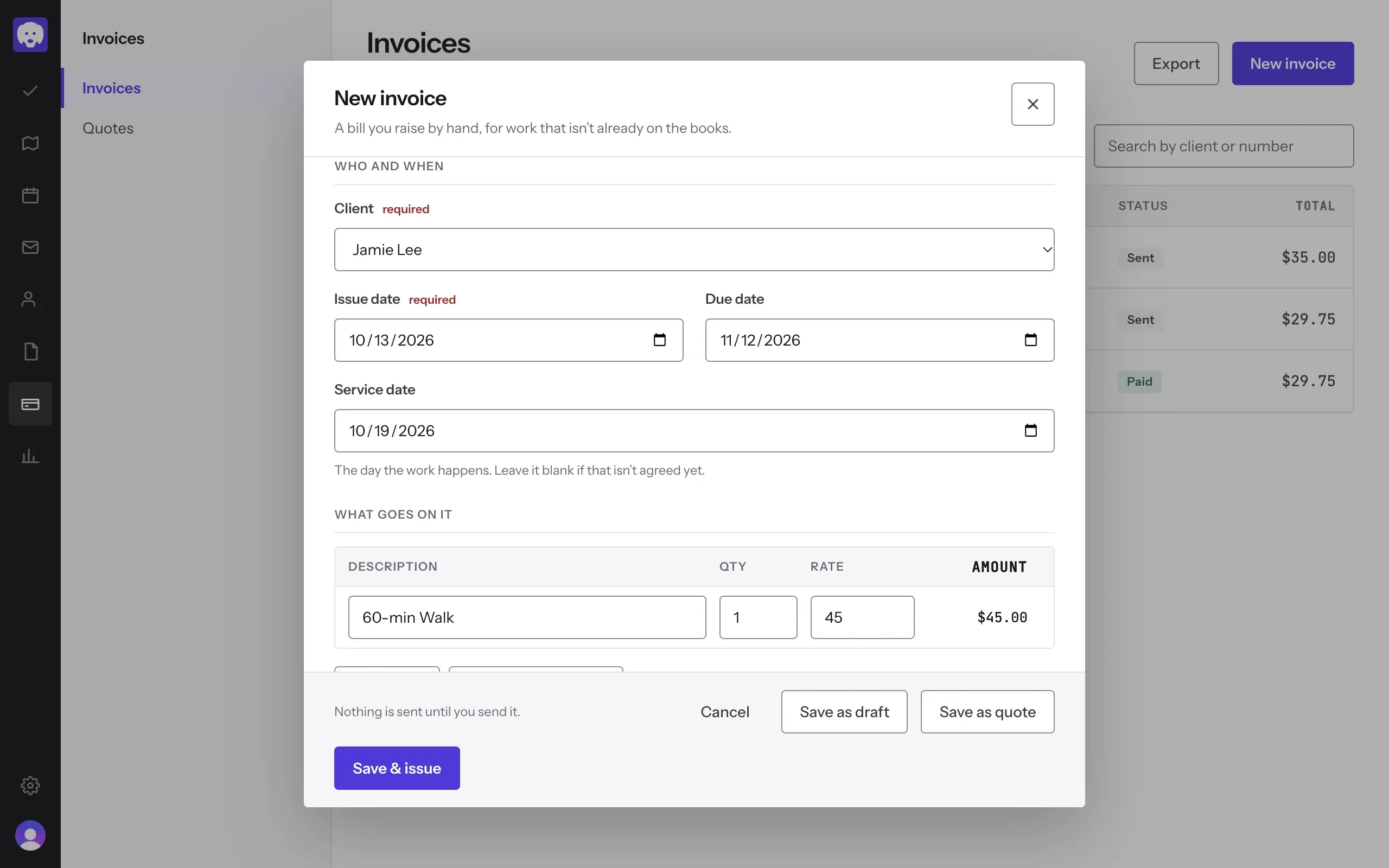
Click Invoices in the left-hand bar, then New invoice. Under Who and when, choose the Client; the Issue date and Due date fill in for you. Set the Service date if you know it.
Under What goes on it, click From the catalogue to add a service at its price, or Add a line to type your own. Add Notes to show on the invoice.
Click Save & issue. (Not ready yet? Save as draft keeps it to yourself, and Save as quote sends a quote instead.)
If you turn on Auto-invoice on completion on a client’s page, Reeve raises a draft invoice for you each time one of their visits is marked complete.
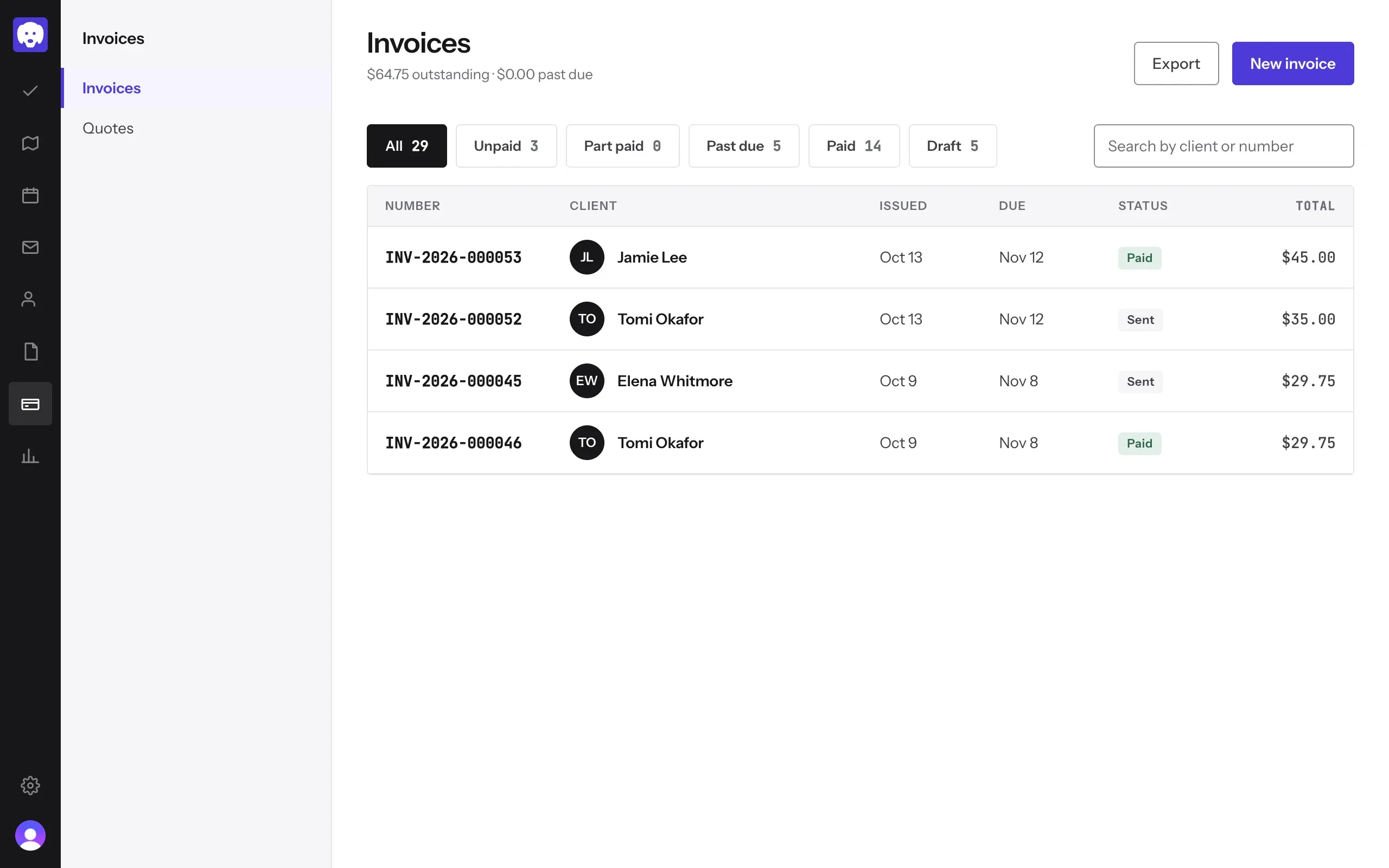
Find it in your invoices
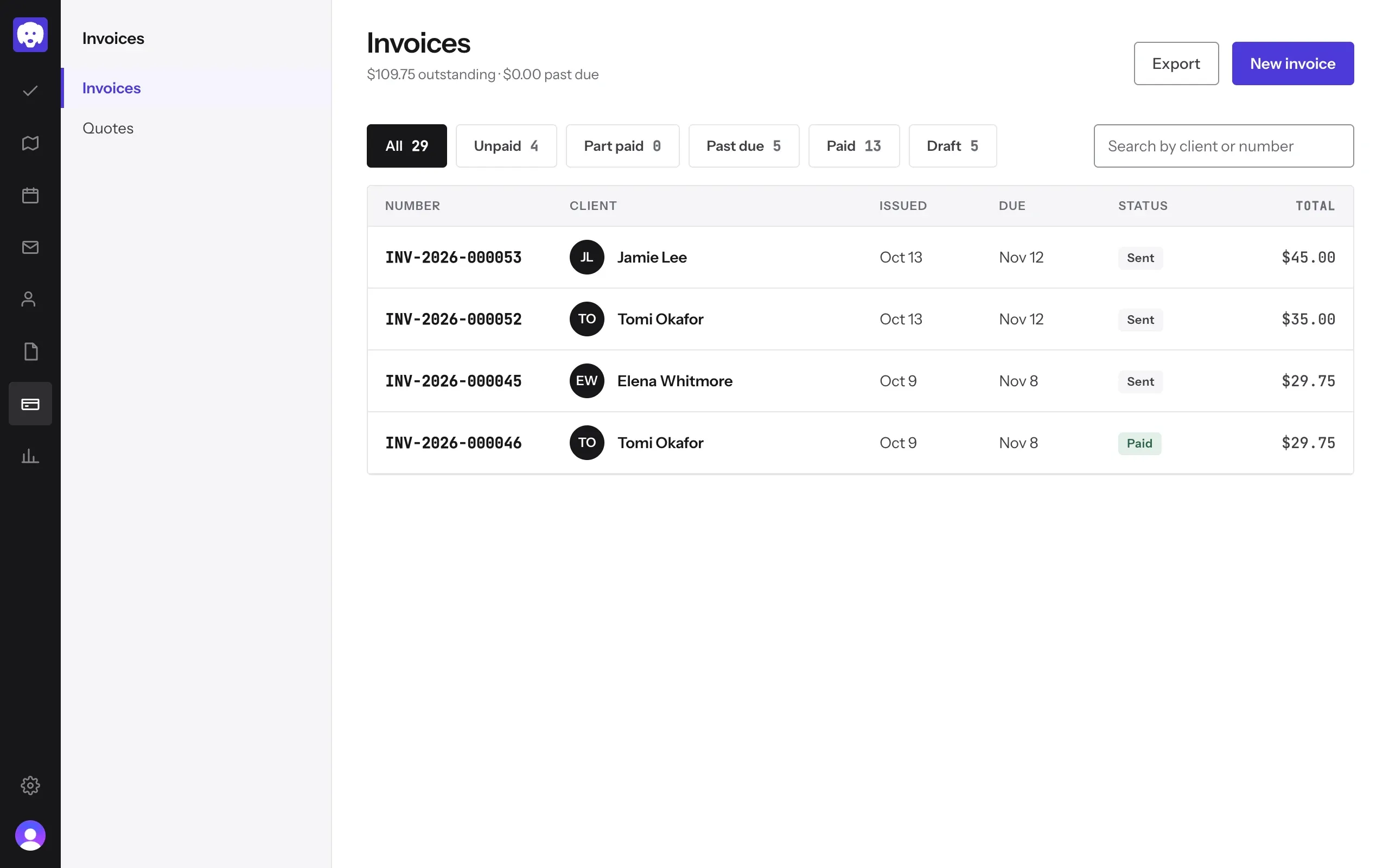
The invoice appears at the top of the list as Sent. The chips across the top show what’s Unpaid, Part paid, Past due, Paid and Draft.
Open it
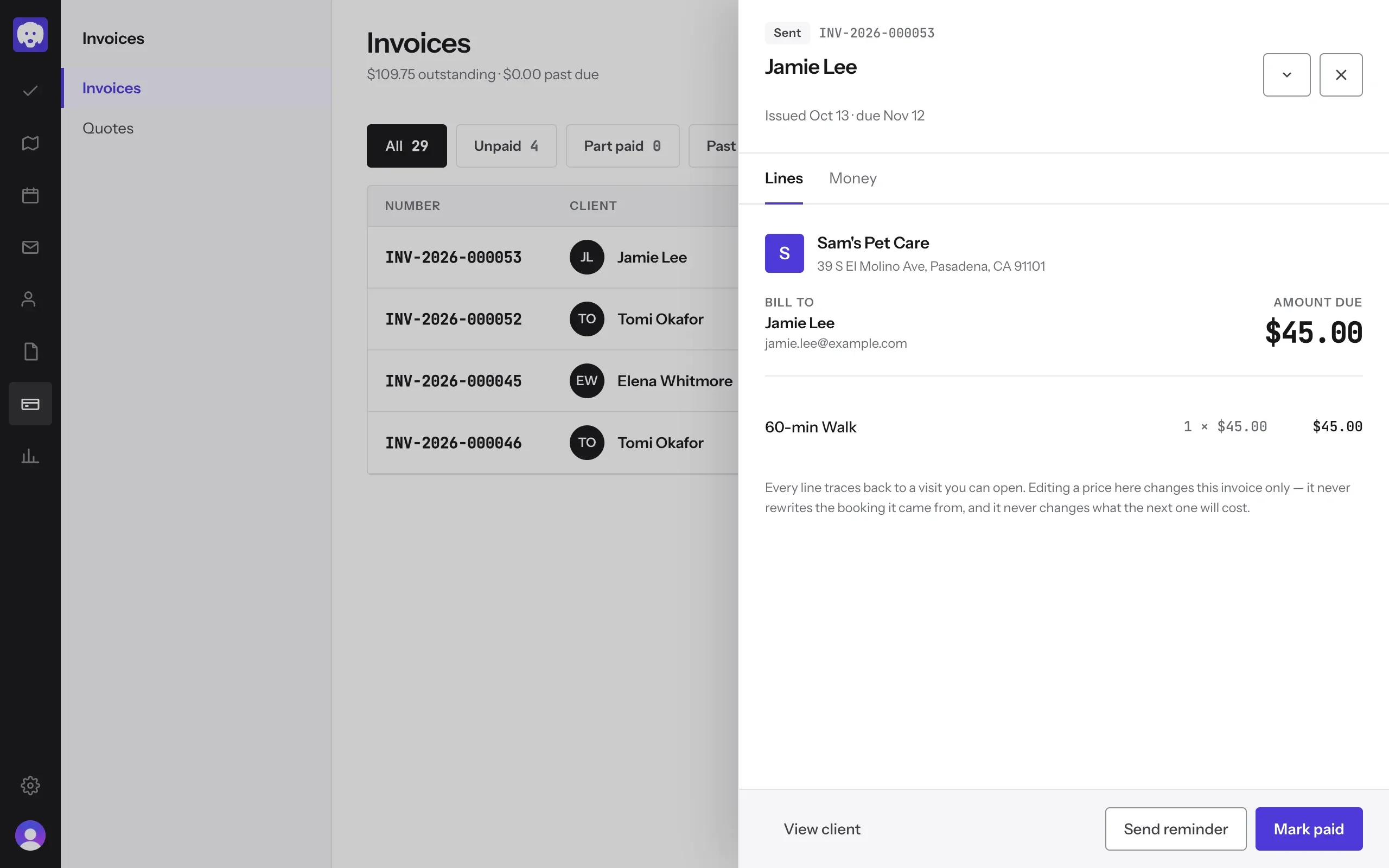
Click the invoice to see it as the client does: your business, who it’s billed to, the amount due and each line. From here you can Send reminder, or open View client.
Mark it paid
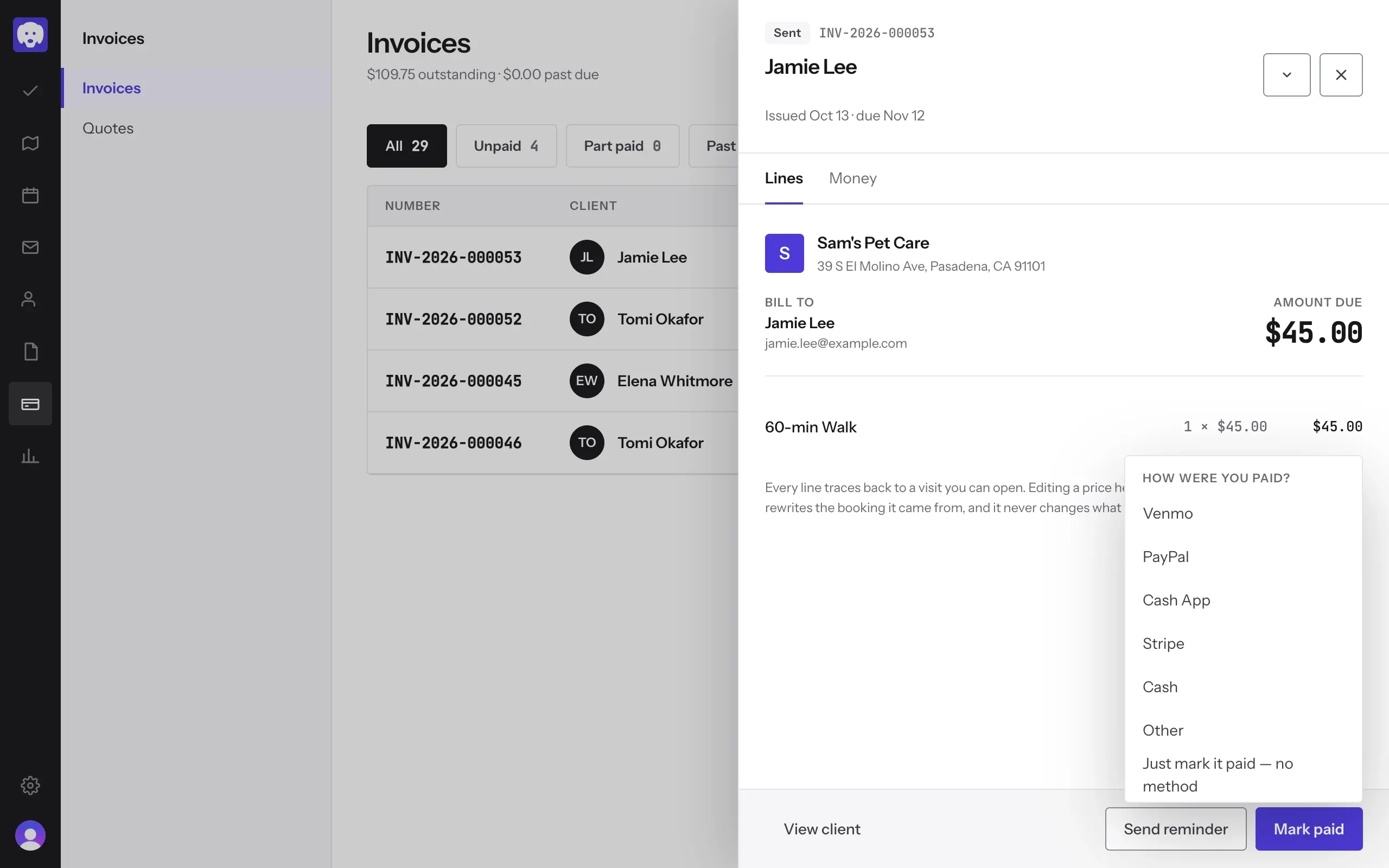
When the money arrives, click Mark paid and choose how you were paid: Venmo, PayPal, Cash App, Stripe, Cash, Other, or Just mark it paid — no method.
Paid part of it? Open the Money tab and use Record a payment to enter the amount received.
Done
The invoice is marked Paid, and Reeve confirms which method you chose.
Still stuck?
Email us and a person will help, or book a 15-minute call and we'll walk through it with you.
admin@reeve.pet