Move a booking
Move a booking and confirm the new time. Nothing changes until you click Move.
Time: Seconds · Updated Oct 31, 2026
Before you start
- A booking that hasn't started.
- A computer. Dragging doesn't work on a phone or a touchscreen.
Drag the booking to its new time
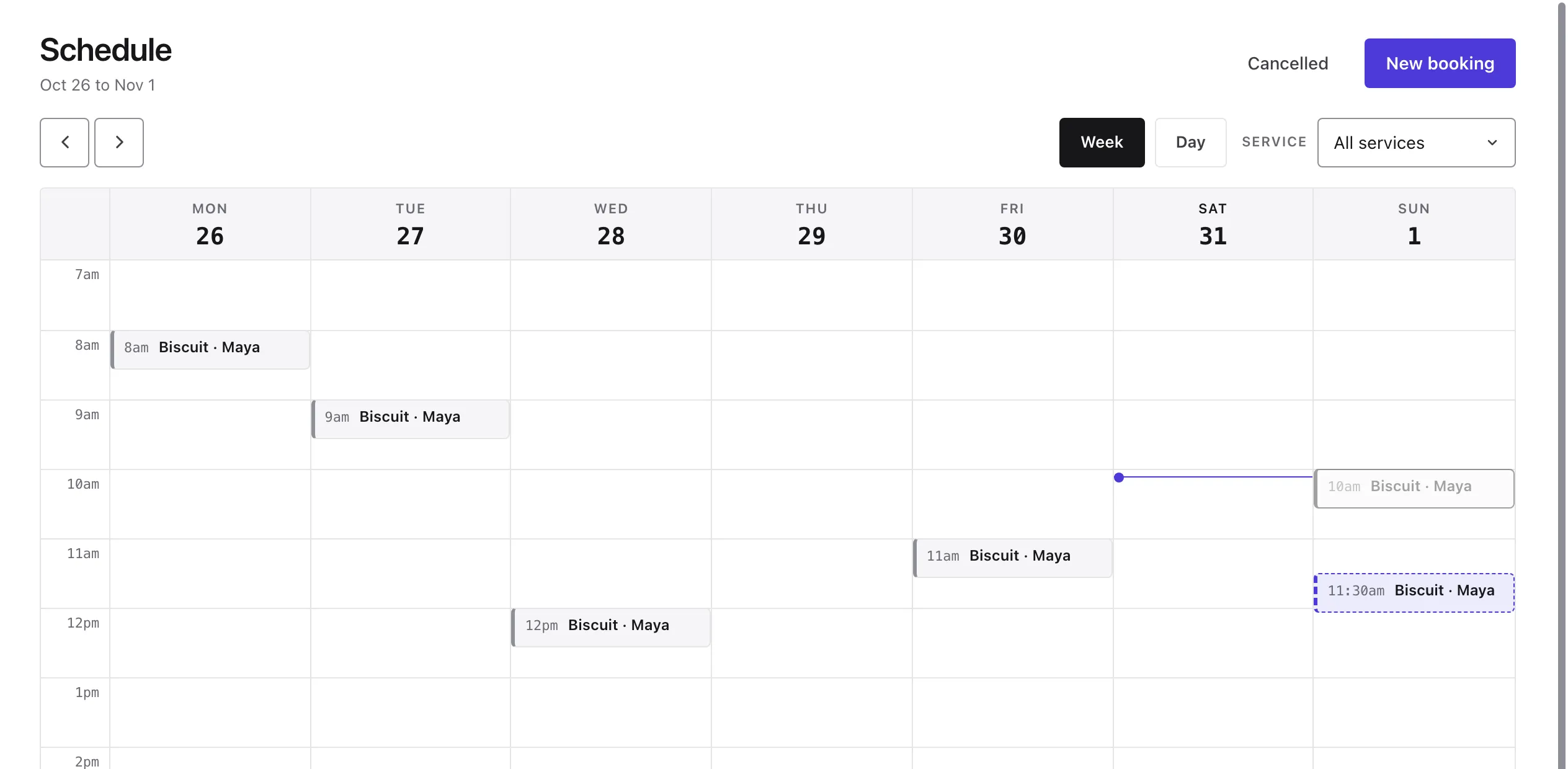
Go to Schedule and find the booking on the week view. Drag it to the new time or day. It moves in 15-minute steps, and a dashed outline shows where it will land.
Check the new time
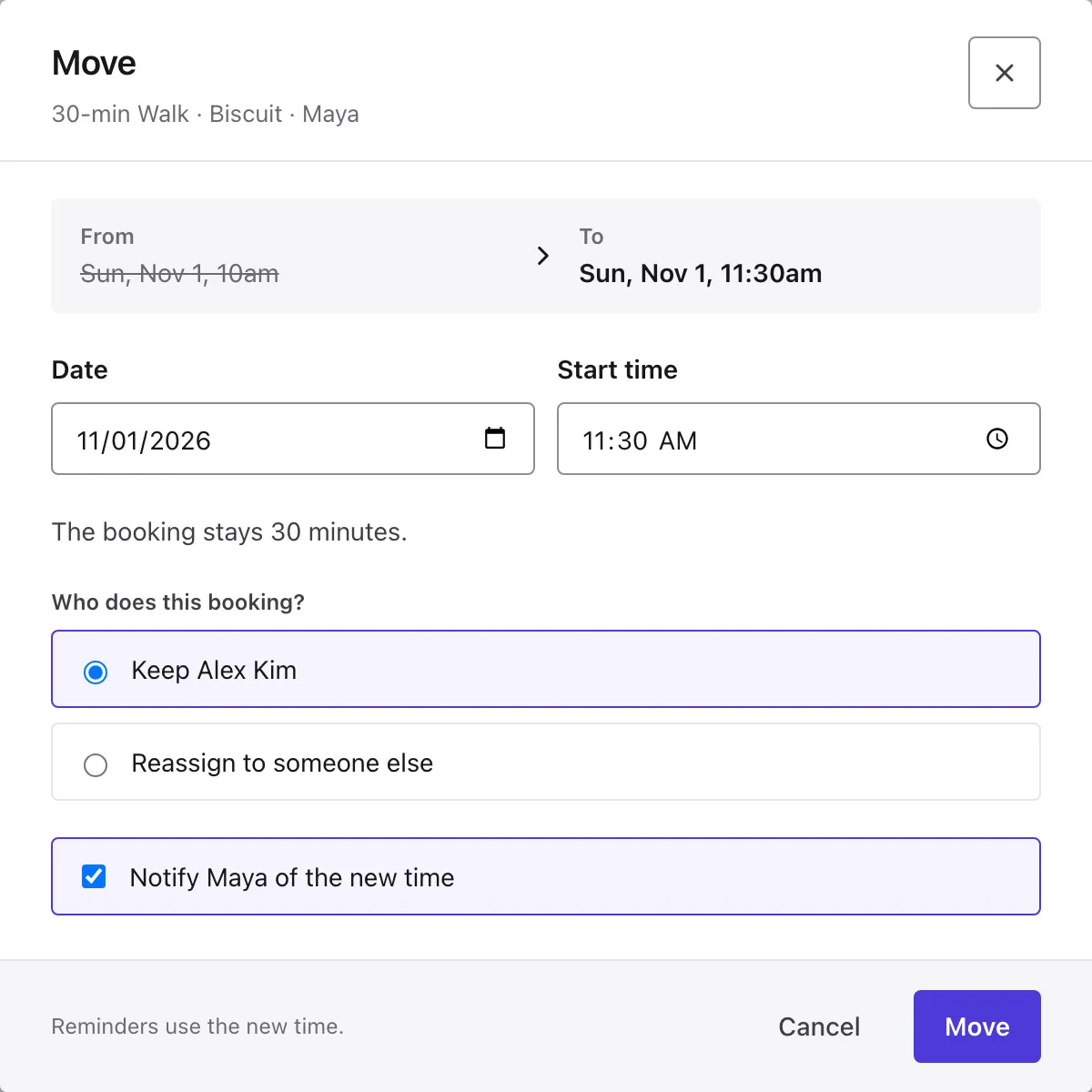
When you let go, Reeve shows the From and To times. If it’s not quite right, change the Date or Start time here. The booking keeps its length.
If the new time overlaps another booking, Reeve warns you and you can still move it. If you’ve turned concurrent bookings off in booking rules, pick a different time.
Moving one end of a boarding stay can change the number of nights, and Reeve tells you when it does. A drop-in moves one visit, and the others stay where they are.
If you have a team, choose whether to keep the person assigned or reassign the booking. The list shows who’s free at the new time.
Tell the client and click Move
Notify is ticked, so the client gets the new time. Untick it if you’ve already told them. Change the wording in Settings → Automated messages, under Booking moved.
Click Move. If you change your mind, click Cancel and the booking stays where it was.
Done
The booking moves, and reminders use the new time. If Reeve couldn’t reach the client, it tells you, so you can message them yourself.
If the booking has a draft invoice, it updates to match, unless you’ve changed its price by hand. An invoice that’s already sent or paid doesn’t change, so update it yourself if the amount or date needs to change.
What’s next
On the day, start and finish the visit from Today.
Still stuck?
Email us and a person will help, or book a call and we'll walk through it with you.
admin@reeve.pet